A First Look at Windows Cloud IO Keyboard Input Protection

As organisations continue adopting Windows 365 and Azure Virtual Desktop, the conversation around security has shifted from the data centre to the endpoint. We have locked down our tenants, hardened our images and deployed multi factor authentication everywhere. However one of the oldest security risks remains the simplest: keyboard input.
Malware and keyloggers on unmanaged or compromised endpoints can still intercept input before it reaches the secure Cloud PC or session host. Windows Cloud IO Keyboard Input Protection is Microsoft’s answer to that problem.
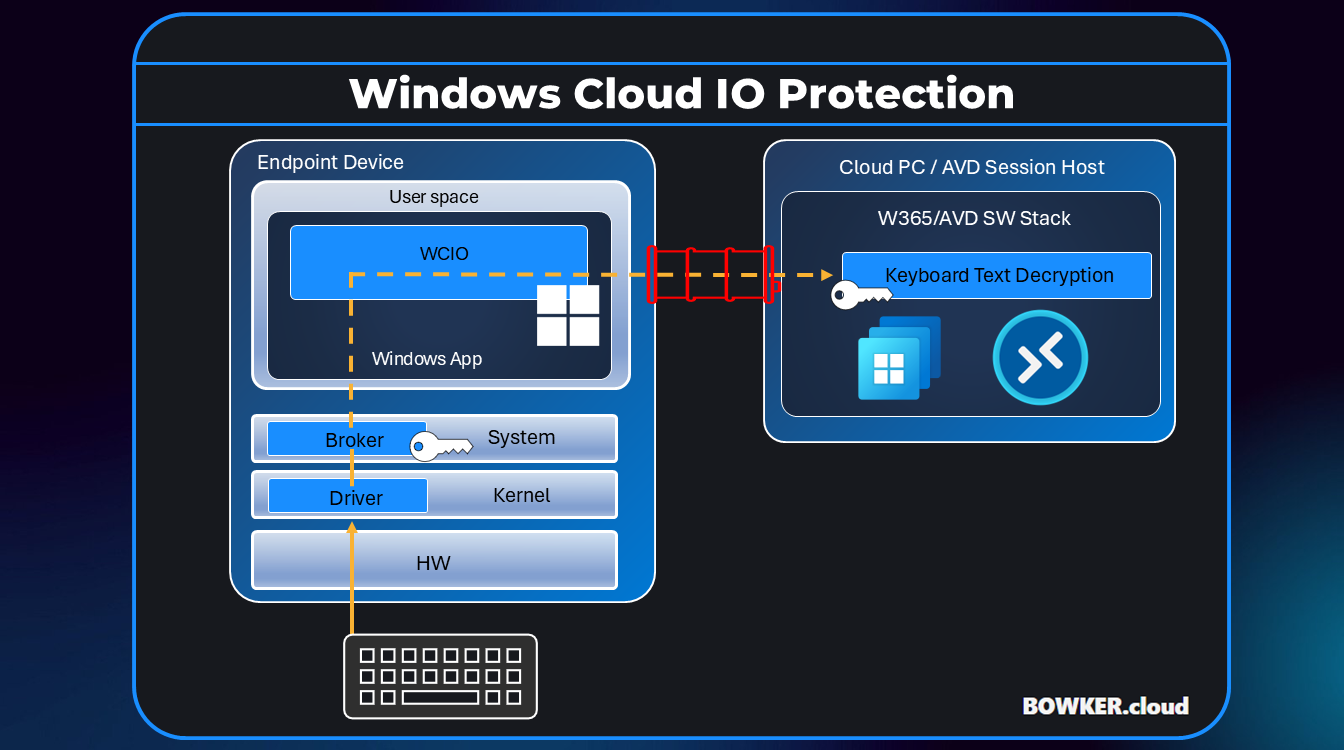
Windows Cloud IO adds a kernel level driver and a system level encryption service to the physical endpoint. When enabled, every keystroke is encrypted at source, transmitted securely and only decrypted inside the Cloud PC or AVD session host. This prevents local processes, malware or screen scraping tools from intercepting what the user types.
To enable the feature, both the physical endpoint and the Cloud PC or AVD session host must be configured.
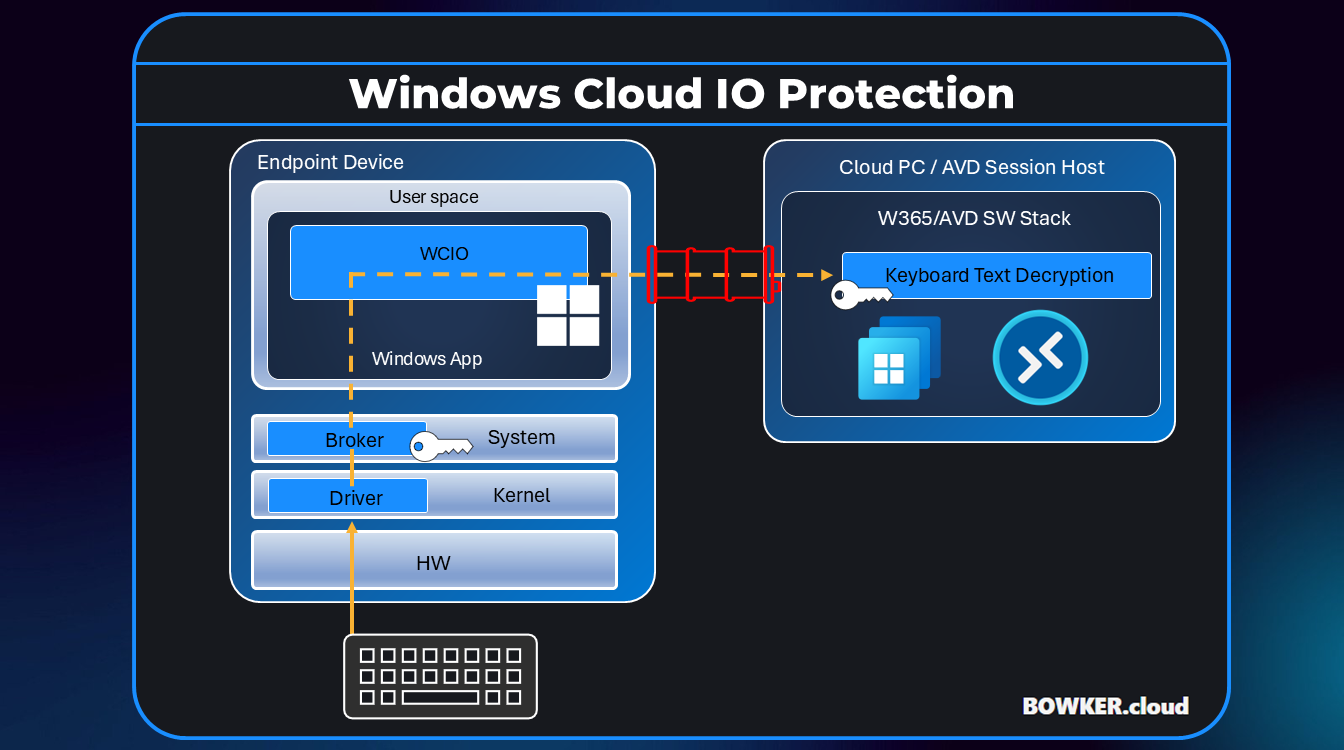
Install the following in this order:
If the MSI is not installed, the Windows App will block the connection and prompt the user to install the protector before proceeding.
Microsoft supports enabling Keyboard Input Protection through Group Policy.
The registry keys below reflect what the GPO applies.
Only after these settings are in place will the Cloud PC or AVD VM accept connections from IO protected endpoints.
Group Policy is the recommended and currently documented configuration method for enabling Windows Cloud IO Protection. Microsoft states:
“Currently the feature can only be enabled using Group Policy.”
Source: https://learn.microsoft.com/en-us/windows-365/enterprise/windows-cloud-input-protection
If you manage Cloud PCs or AVD session hosts using Intune instead of GPO, you can deploy the equivalent registry keys using a PowerShell script. This mirrors what the Group Policy setting applies, but GPO remains the officially supported method at this stage. Microsoft will hopefully introduce native Intune Settings Catalog and CSP controls in a future update.
# Enable Windows Cloud IO Keyboard Input Protection for both Windows 365 and AVD

$path  = 'HKLM:\SOFTWARE\Policies\Microsoft\Windows NT\Terminal Services'
$name  = 'fWCIOKeyboardInputProtection'
$value = 1

try {
    # Create the key path if it does not exist
    if (-not (Test-Path -LiteralPath $path)) {
        New-Item -Path $path -Force | Out-Null
    }

    # Create or update the value
    if (-not (Get-ItemProperty -Path $path -Name $name -ErrorAction SilentlyContinue)) {
        New-ItemProperty -Path $path -Name $name -PropertyType DWord -Value $value -Force | Out-Null
    } else {
        Set-ItemProperty -Path $path -Name $name -Value $value
    }

    Write-Output "Windows Cloud IO Keyboard Input Protection has been enabled. A reboot is required."

    # Reboot the VM to apply the change
    Restart-Computer -Force
    exit 0
}
catch {
    Write-Error "Failed to apply registry setting. $($_.Exception.Message)"
    exit 1
}# Disable Windows Cloud IO Keyboard Input Protection for both Windows 365 and AVD
$path = 'HKLM:\SOFTWARE\Policies\Microsoft\Windows NT\Terminal Services'
$name = 'fWCIOKeyboardInputProtection'
try {
if (Get-ItemProperty -Path $path -Name $name -ErrorAction SilentlyContinue) {
Remove-ItemProperty -Path $path -Name $name -Force
Write-Output "Windows Cloud IO Keyboard Input Protection has been disabled. A reboot is required."
# Reboot the VM to fully remove the setting
Restart-Computer -Force
} else {
Write-Output "Registry value not found. Nothing to remove."
}
exit 0
}
catch {
Write-Error "Failed to remove registry setting. $($_.Exception.Message)"
exit 1
}Recommended Intune settings:
Supported:
Not supported:
The endpoint must be a physical Windows 11 device. Virtual devices cannot provide secure input.
During private preview testing, I ran multiple scenarios across different endpoint devices and Windows 365 SKUs, including both Enterprise and Frontline. I tested with and without Windows Cloud IO Keyboard Input Protection enabled and everything functioned exactly as expected. Successful connections worked normally and non compliant devices were correctly blocked.
Most importantly, the keylogger on the local device did not capture any keystrokes when connected to a protected Cloud PC. This validates the effectiveness of the encrypted channel in real world conditions.
Windows 365 Cloud Apps also worked flawlessly during testing, with no performance or usability issues.
Early feedback has focused on improving administrator visibility. The most common requests include:
These improvements are expected in future updates.
Security depends on the endpoint, identity and the cloud working together. Windows Cloud IO Keyboard Input Protection strengthens the endpoint by protecting input before Windows or malware can intercept it. This reduces the risk of credential theft and improves the overall security posture of Cloud PCs and AVD.
With Windows 365 , Azure Virtual Desktop and modern Intune deployments continuing to expand, this is a simple and effective improvement to the security model without impacting performance or usability.
Become a subscriber receive the latest updates in your inbox.