Windows 365 Reserve: A Different Kind of Cloud PC Use Case
Windows 365 Reserve gives Windows 365 a new value proposition: endpoint recovery. I went through the full setup, provisioning and return experience in my tenant.
Up until now, I've mostly positioned Windows 365 Enterprise and Flex (formerly Frontline) around familiar virtual desktop use cases. If you're already using Citrix, Horizon or another VDI platform, the value of moving that desktop into Windows 365 is relatively easy to understand.
Windows 365 Reserve is different.
You don't need to be a VDI customer, or even particularly interested in virtual desktops, for the use case to make sense. This is about keeping somebody productive when their normal device is lost, damaged or unavailable.
That's what caught my attention. Rather than another way of delivering a desktop, Reserve gives Windows 365 a completely different value proposition: endpoint recovery. And at around $20 per user, per year, it's an incredibly inexpensive way to add that level of resilience.
I'm seeing a lot of interest in it across our customer base now, and we're also consuming it internally at Phoenix, which has given me a chance to look at it from both sides.
I wanted to showcase how well that worked in practice, so I set it up in my own tenant and went through the full experience from provisioning through to returning the Cloud PC.
Before you need it
There are a couple of things worth understanding before you actually need Reserve.
Each eligible user gets up to 10 days of Cloud PC use per annual licence. The days aren't shared across users, and you don't have to use them all in one stretch. That makes it useful for more than one incident, provided the Cloud PC is returned when it's no longer needed.
The other thing I'd sort out early is eligibility. There's a seven-day wait after you first assign the Reserve policy to a user, or after a lapse in coverage. Users also need the appropriate Windows 10/11 Enterprise, Intune and Microsoft Entra ID P1 licences. I see this as something to add to your endpoint recovery plan in advance, so it's ready when a device goes missing.
The specification is fixed at 4 vCPU, 16 GB RAM and 128 GB storage. Reserve uses Microsoft Entra join, a Microsoft-hosted network and a gallery image. You can choose a geography, though not an exact Azure region.
The licensing guide and FAQ have the full details.
Creating the Reserve provisioning policy
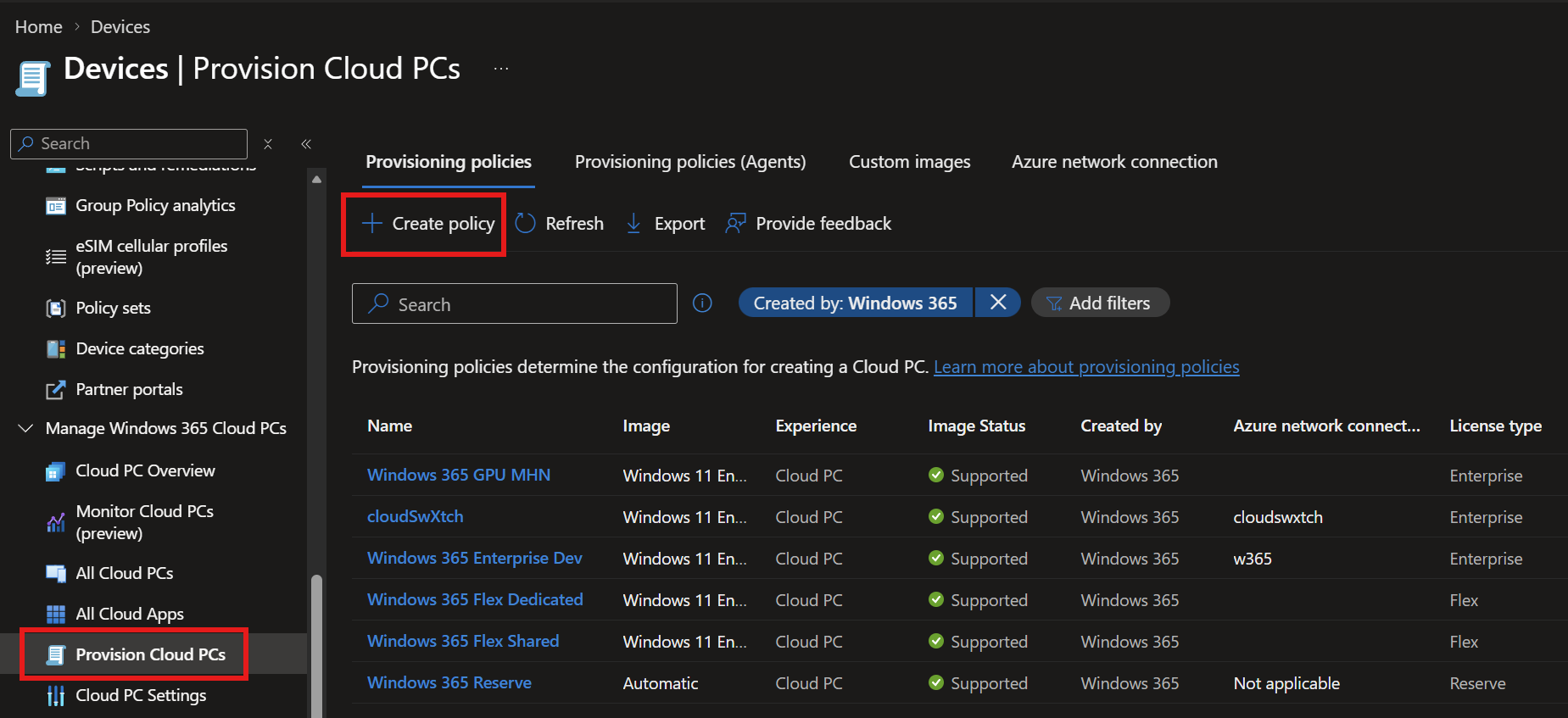
I started in Intune > Devices > Windows 365 > Provisioning policies and selected Create policy. I like that Reserve lives in the same place as the rest of Windows 365, rather than sending you off to manage a separate recovery tool.
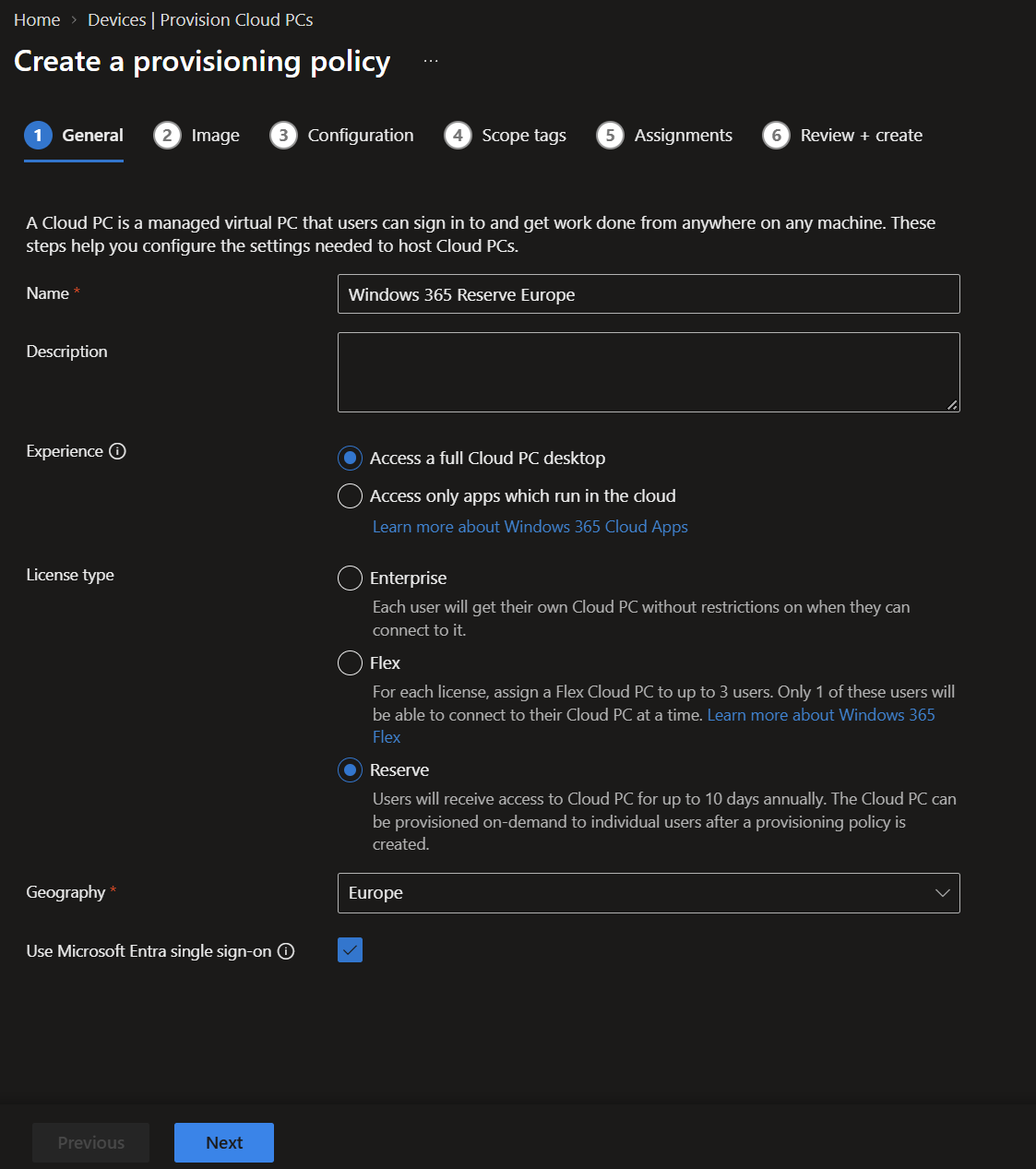
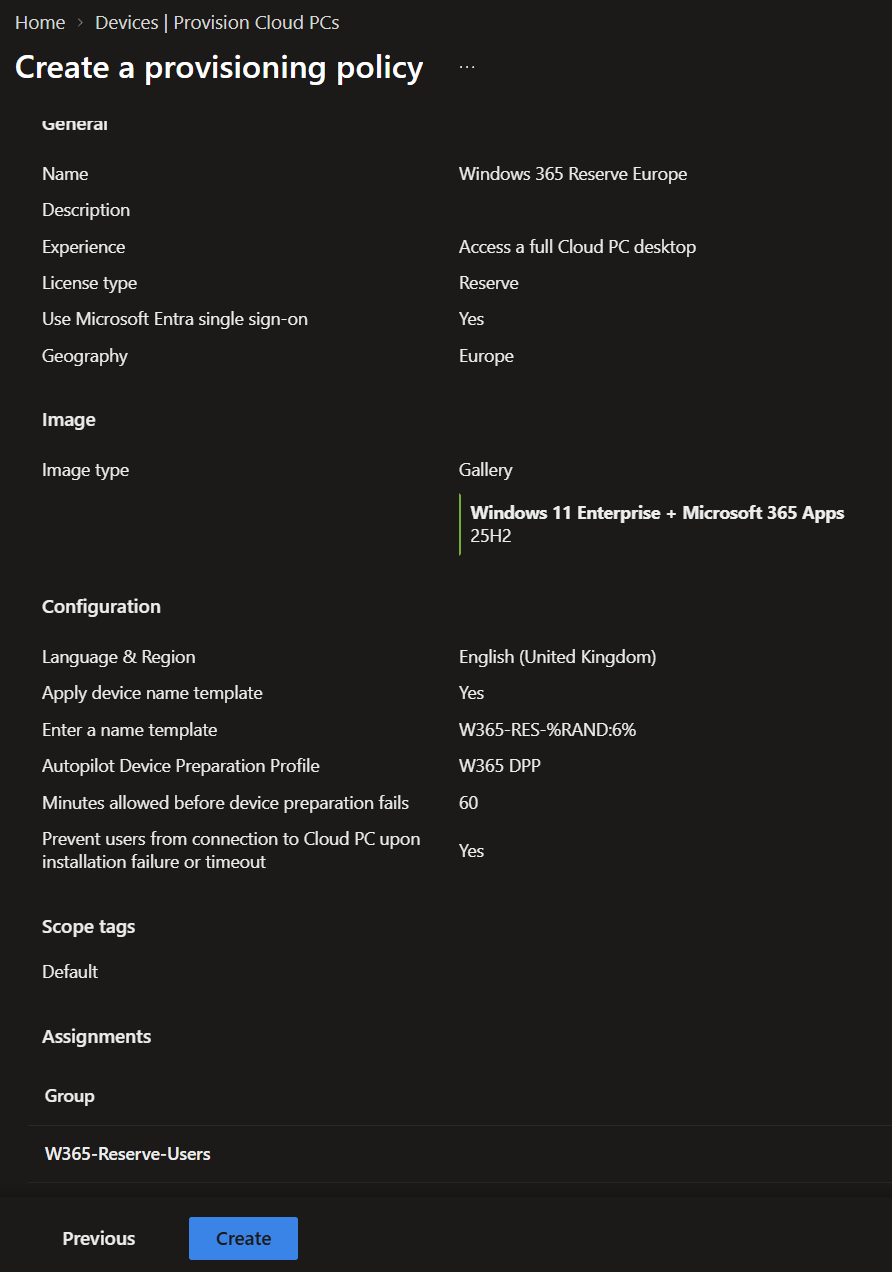
I called mine Windows 365 Reserve Europe, chose Windows 365 Reserve as the licence type and selected Europe for the geography. I enabled single sign-on too.
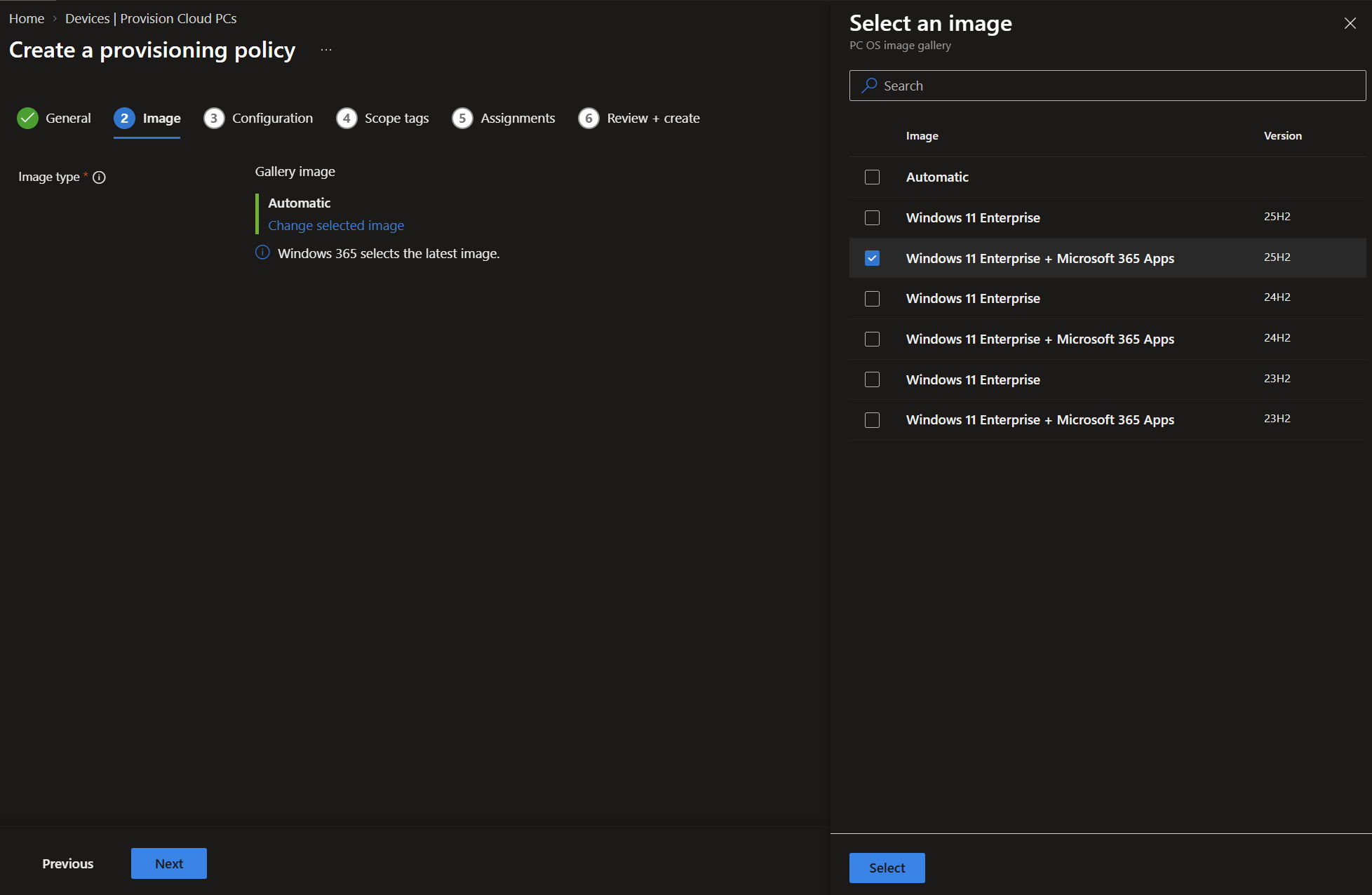
For the image, I picked Windows 11 Enterprise with Microsoft 365 Apps rather than leaving it on Automatic. It gives the user a familiar starting point while their normal device is unavailable. I'd then use the same Intune app and configuration approach I use elsewhere to make sure the important bits are there for them.
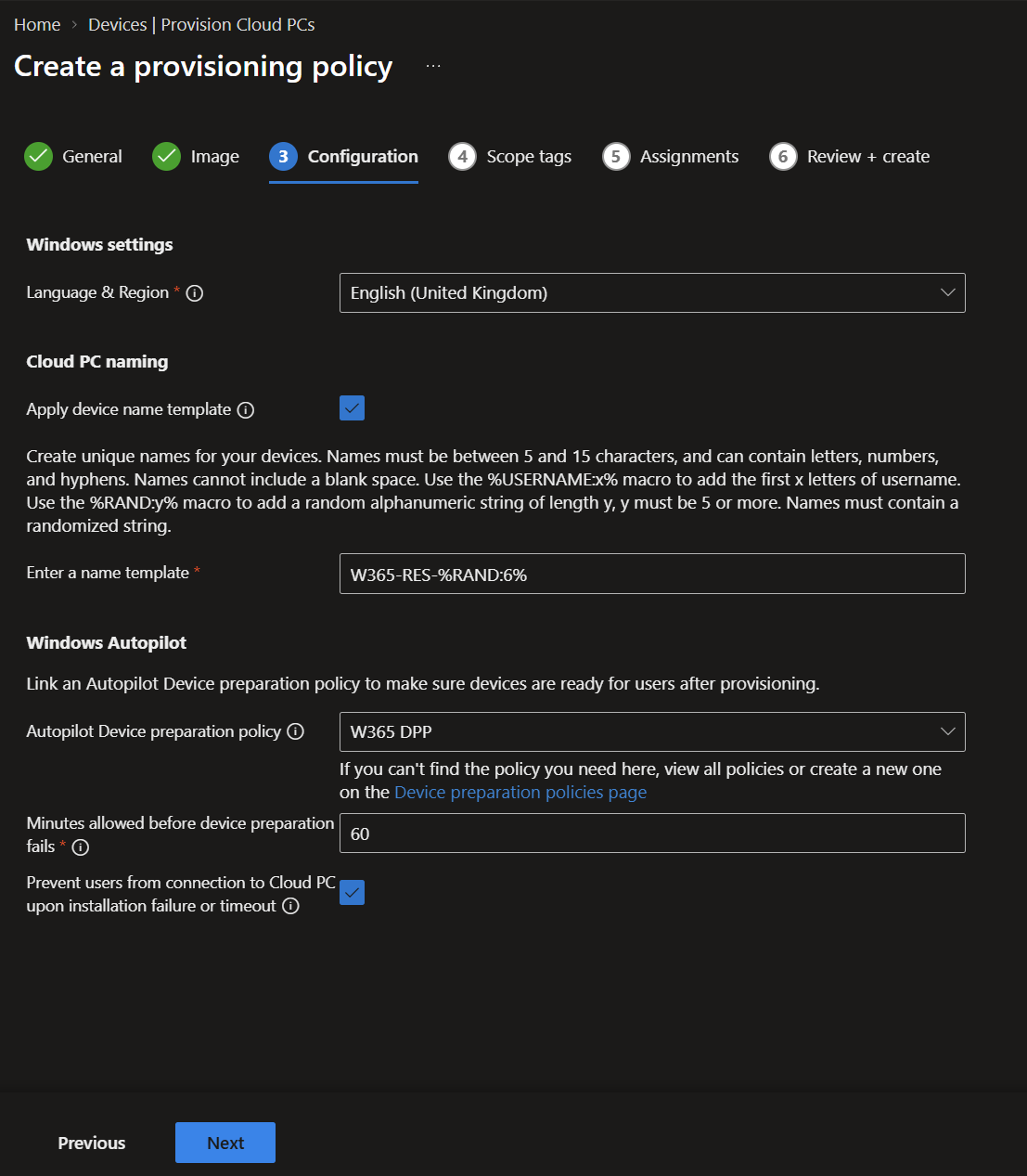
In Configuration, I set the language to English (United Kingdom), used W365-RES-%RAND:6% for the device name and linked my Windows Autopilot Device Preparation policy. That was a nice touch: I could bring Reserve into the setup I already use for Cloud PCs. I also set a 60-minute preparation timeout and chose to prevent connection if preparation fails. Those are my lab choices, and Microsoft's management guide explains the options if you're working out what makes sense for your own environment.
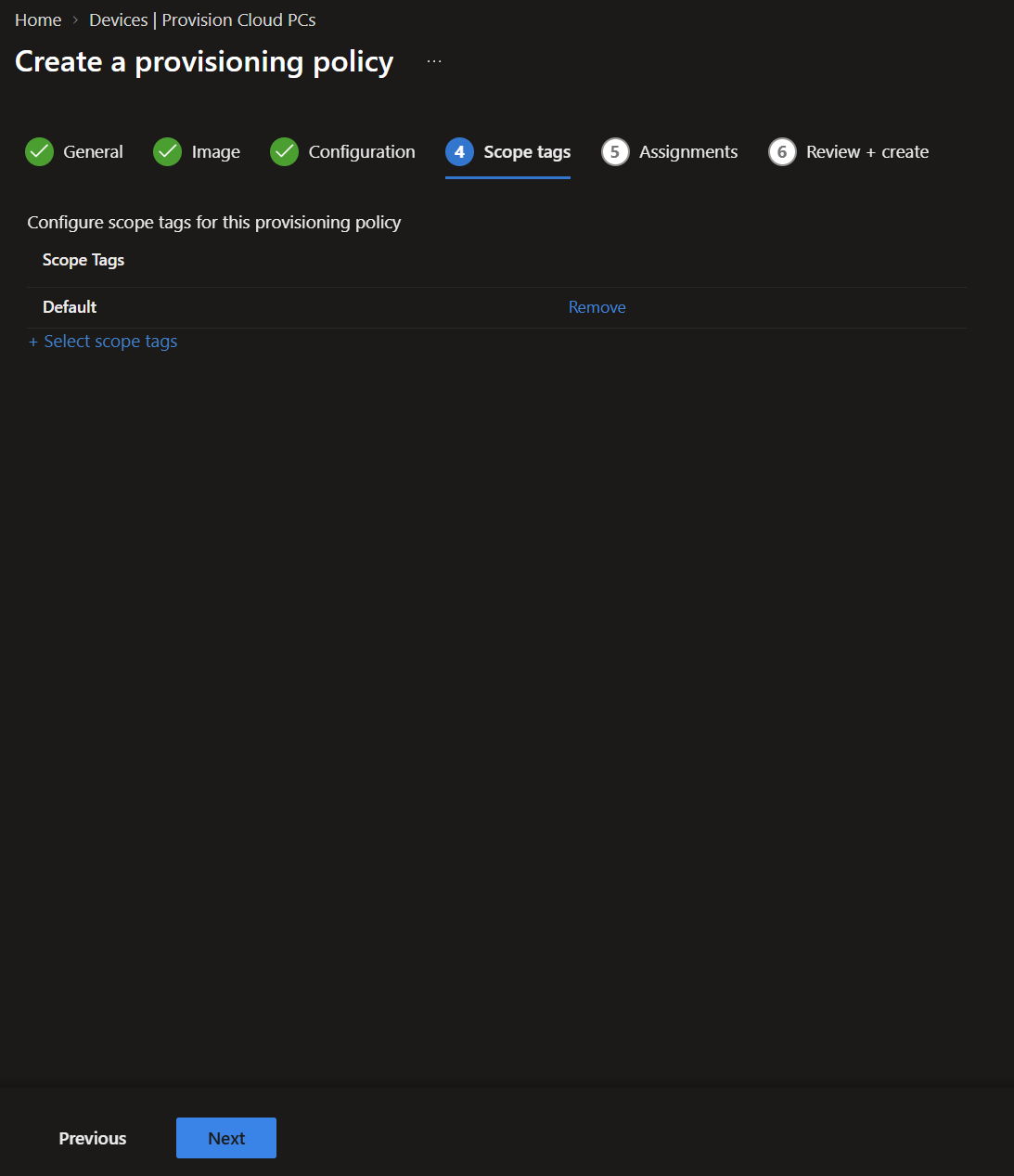
I left Scope tags at the default. There's nothing special to do here unless you already use tags to split up Intune administration.
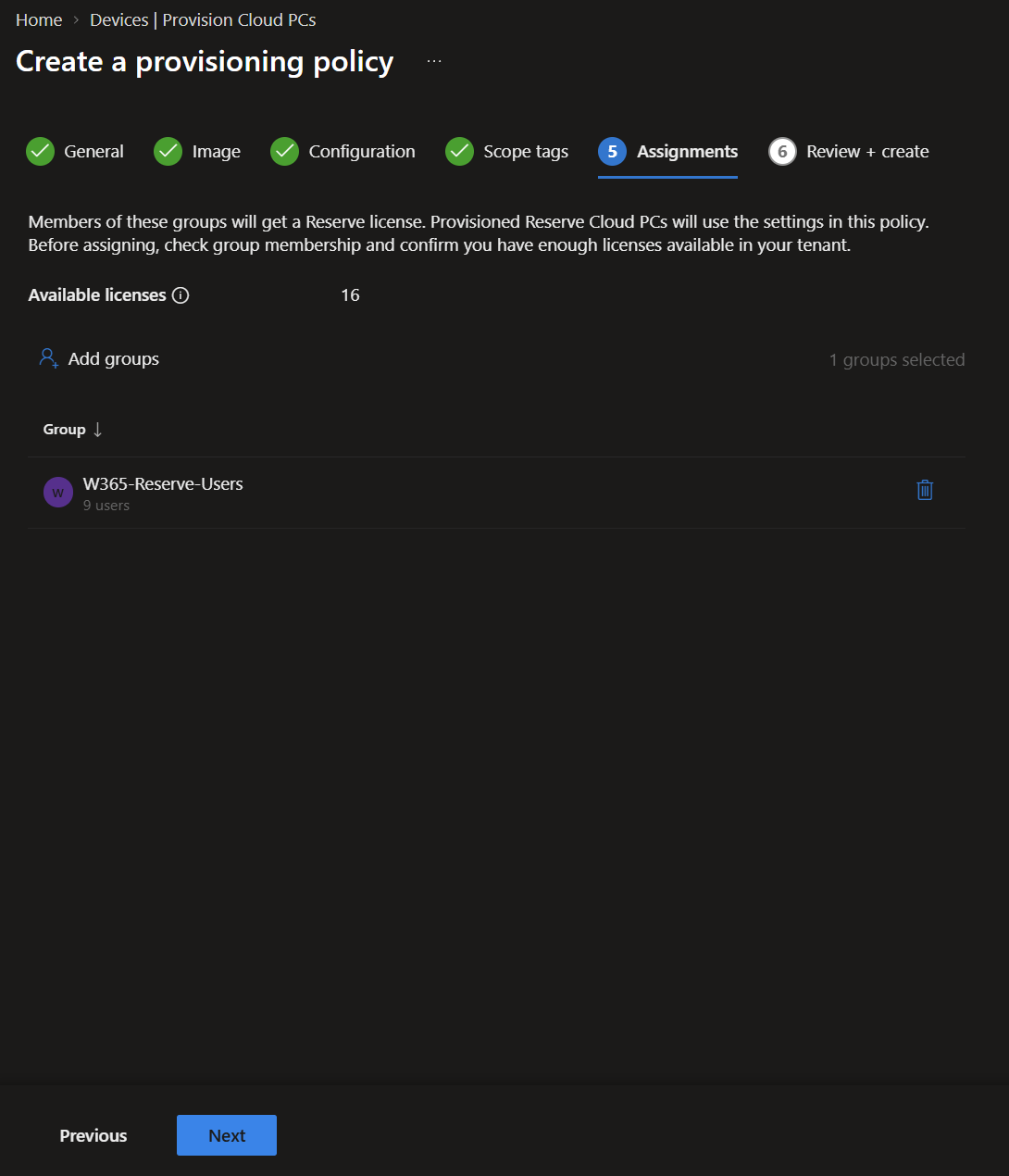
I assigned the policy to W365-Reserve-Users. The group had nine members and Intune showed 16 available licences. One difference from the usual Microsoft 365 licence workflow is that Reserve access comes through the policy assignment, not a separate licence assignment for each user. Microsoft's licensing documentation explains that in more detail.
After a quick check of the review page, I created the policy. That's the basic Reserve setup in place.
Giving users the option to set it up
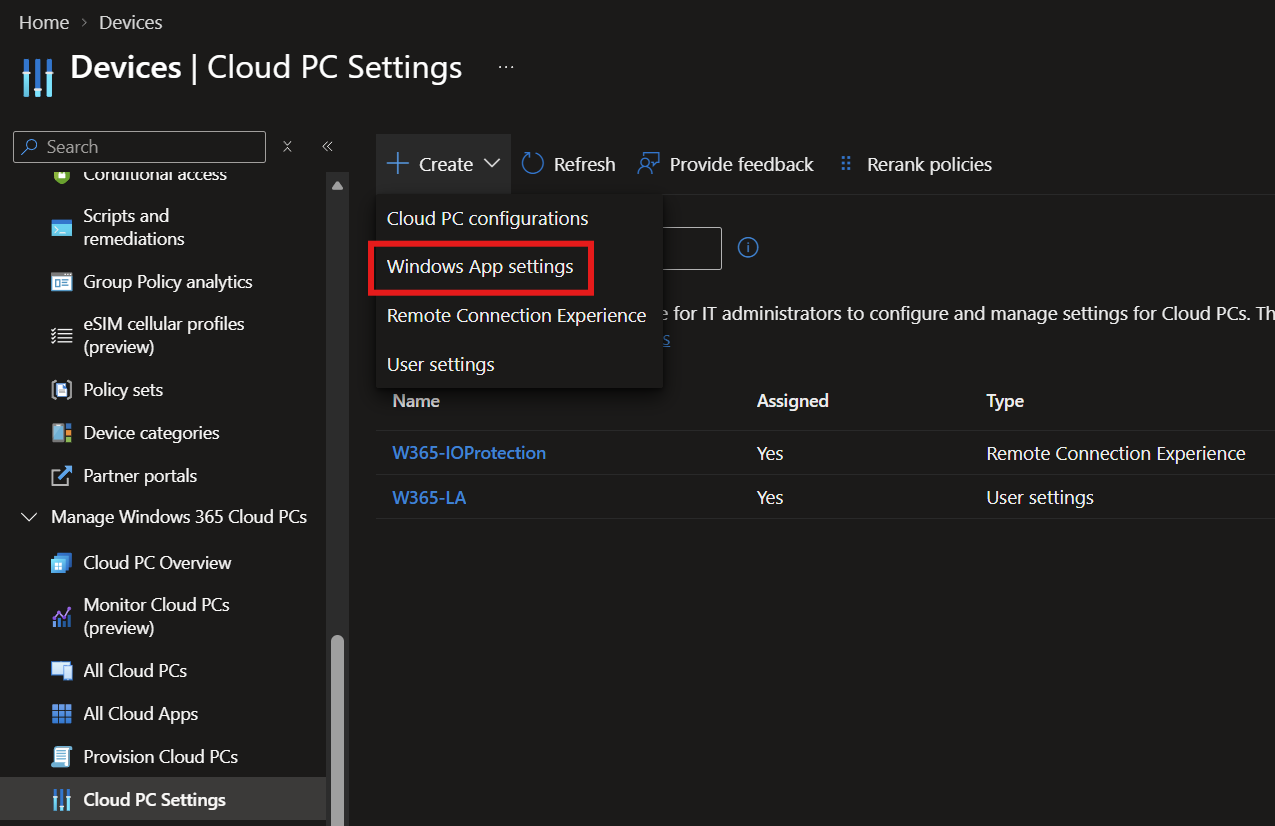
This is the part I was most interested in. An admin can provision a Reserve Cloud PC for someone, but if a user has lost their device, being able to start the process themselves is a real advantage. To enable that option, I went to Devices > Windows 365 > Settings, selected Create and chose Windows App settings.
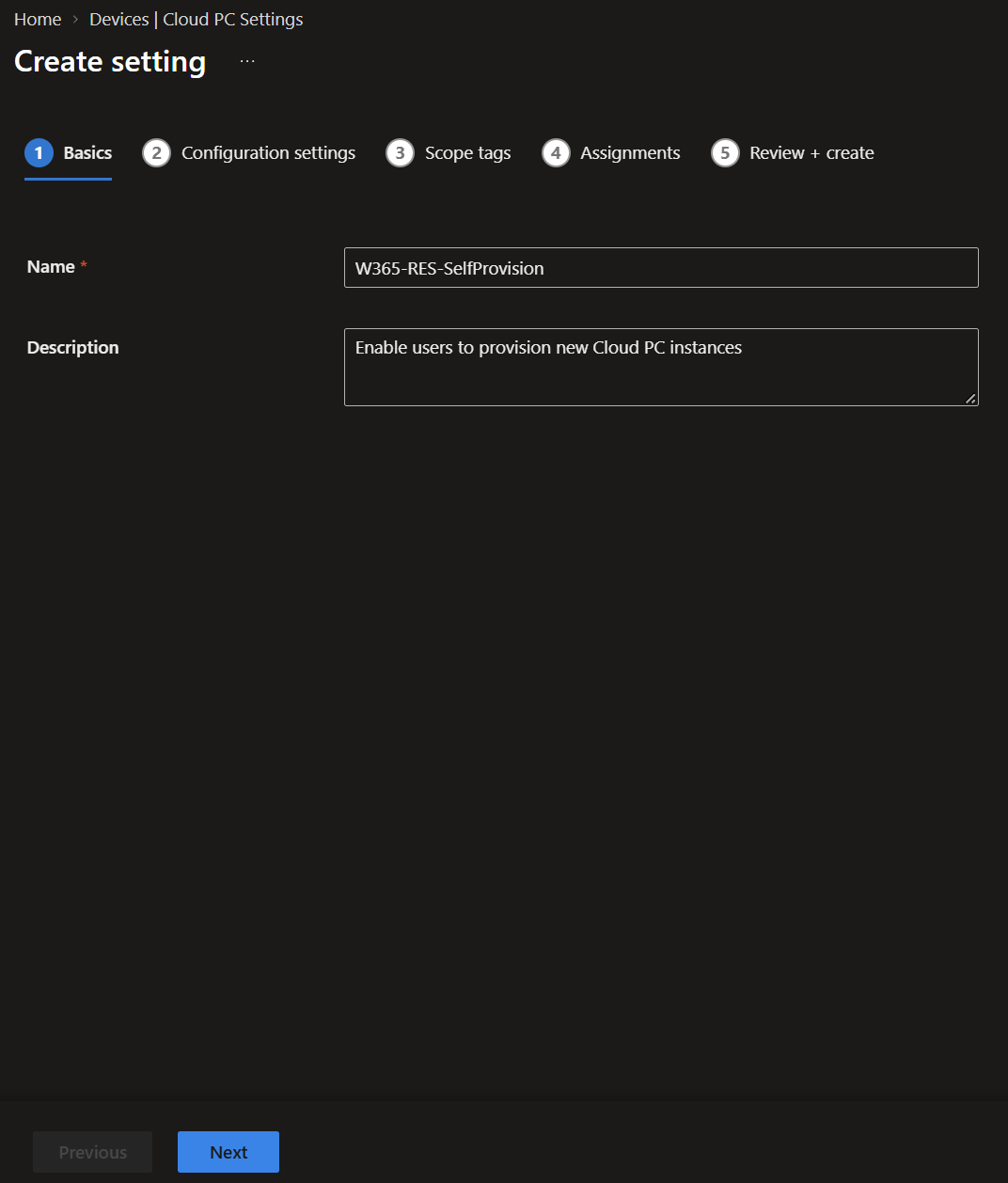
I called the new policy W365-RES-SelfProvision so I'd recognise it later.
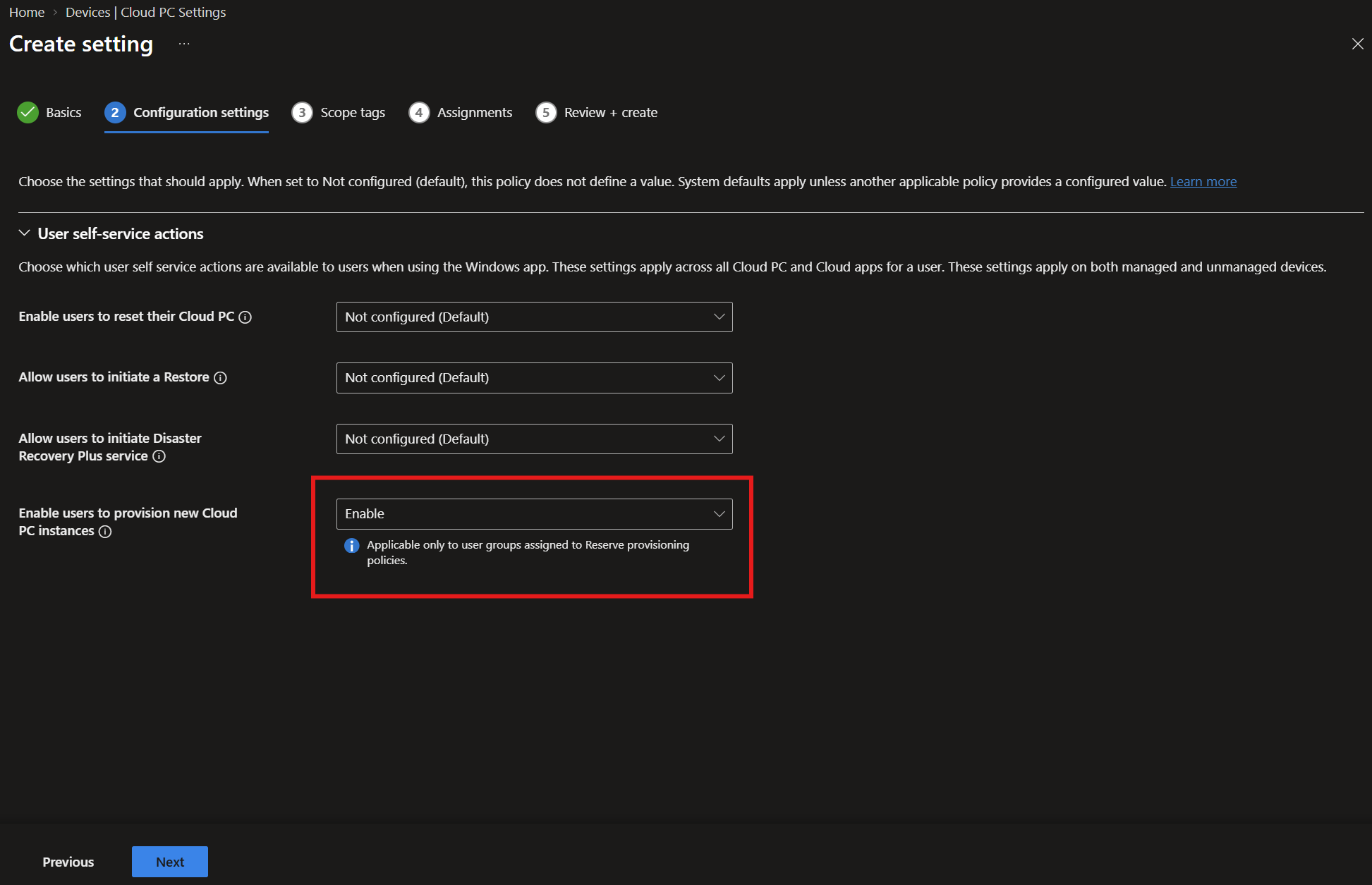
Then I switched on Enable users to provision new Cloud PC instances. Microsoft's management guidance says this is off by default. It only applies to eligible Reserve users, so it doesn't suddenly put a setup button in front of everybody using Windows App.
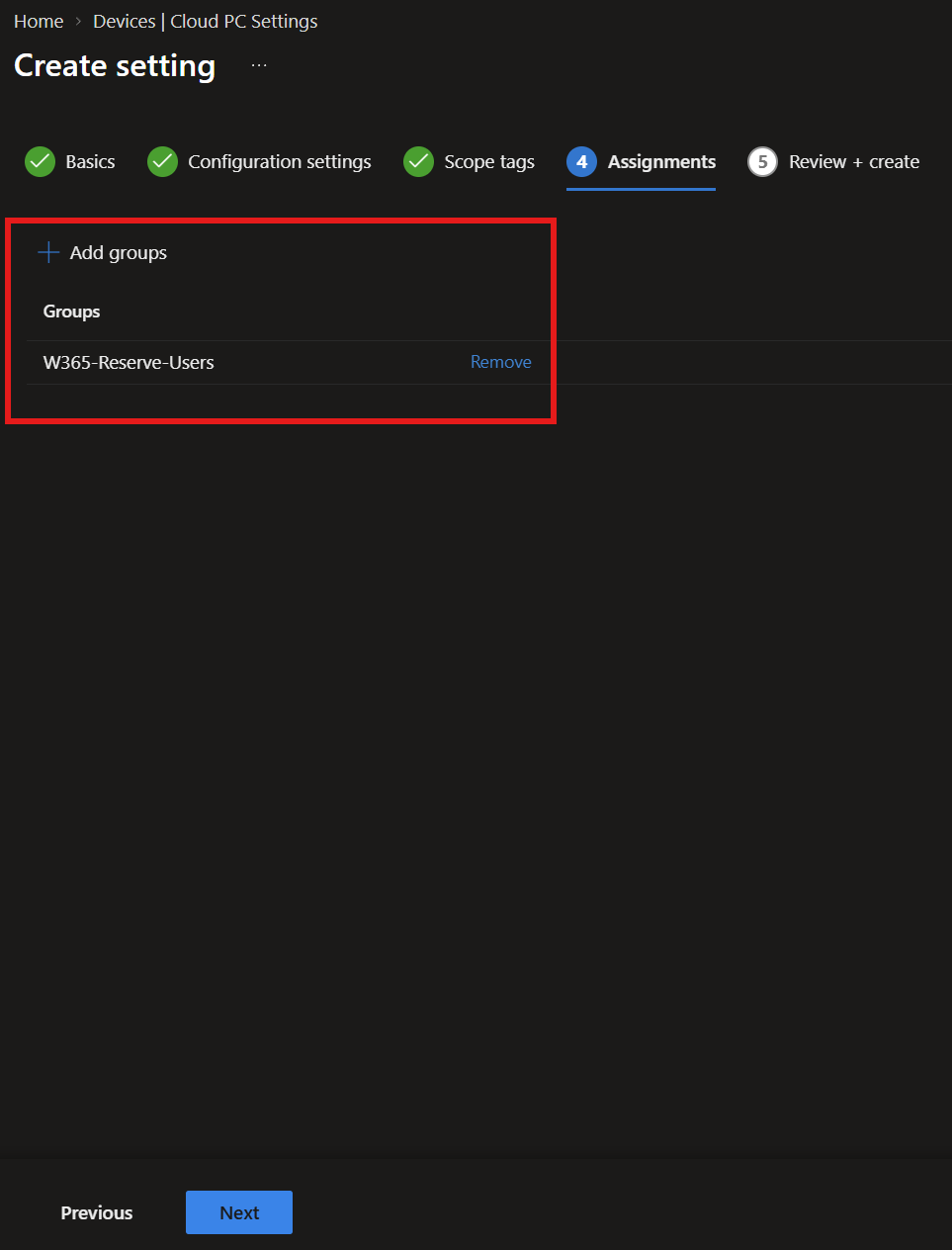
I used the same W365-Reserve-Users group for the Windows App setting. That keeps the self-service option lined up with the people who have Reserve access.
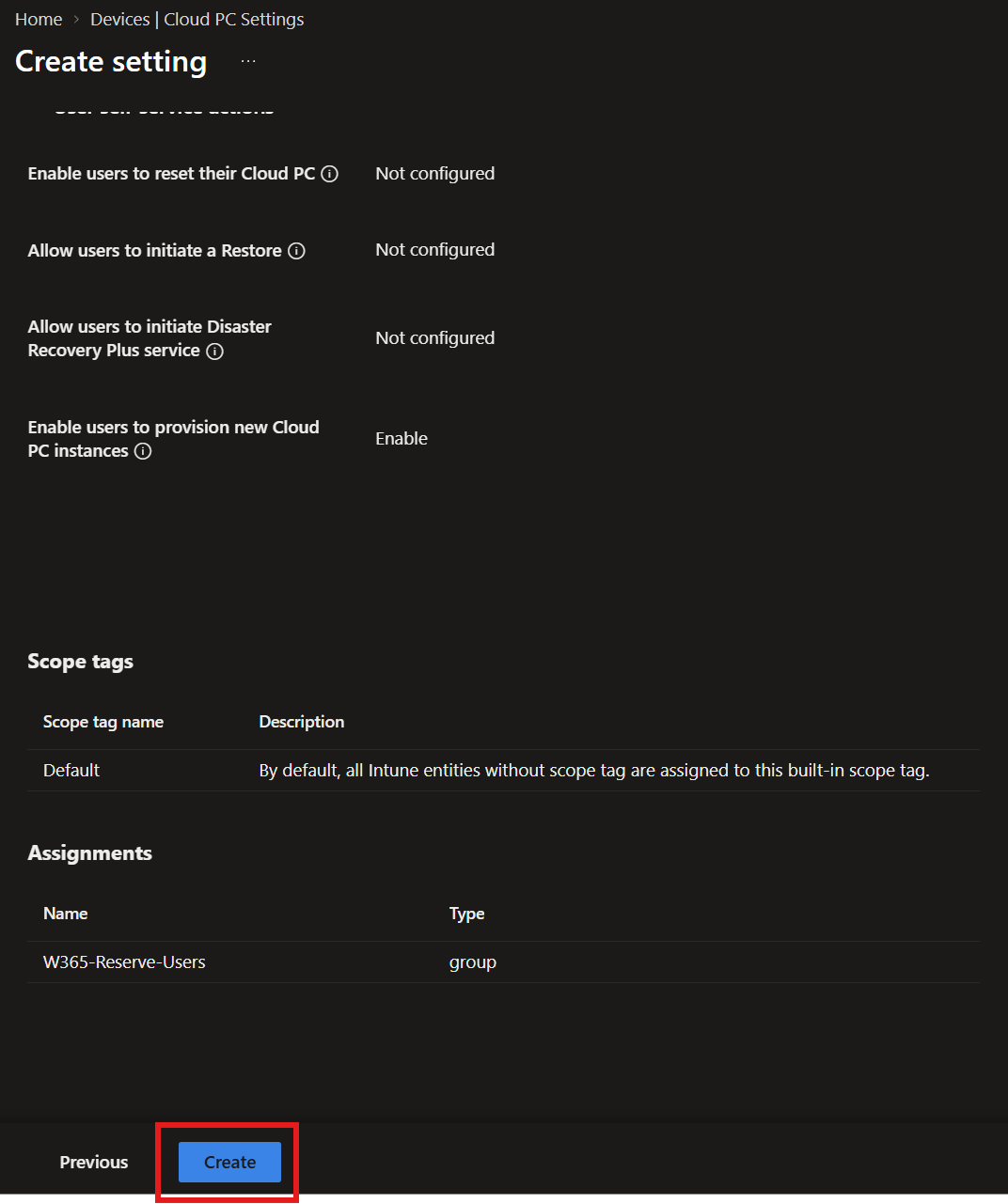
I reviewed and created the setting. There are now two pieces: the provisioning policy defines the Cloud PC, and the Windows App setting lets the user ask for it. Both sit in Intune.
What the user sees
Back in the provisioning policy, my users showed Ready for provisioning, with 10/10 days left. Nothing had been created or counted against their allowance yet.
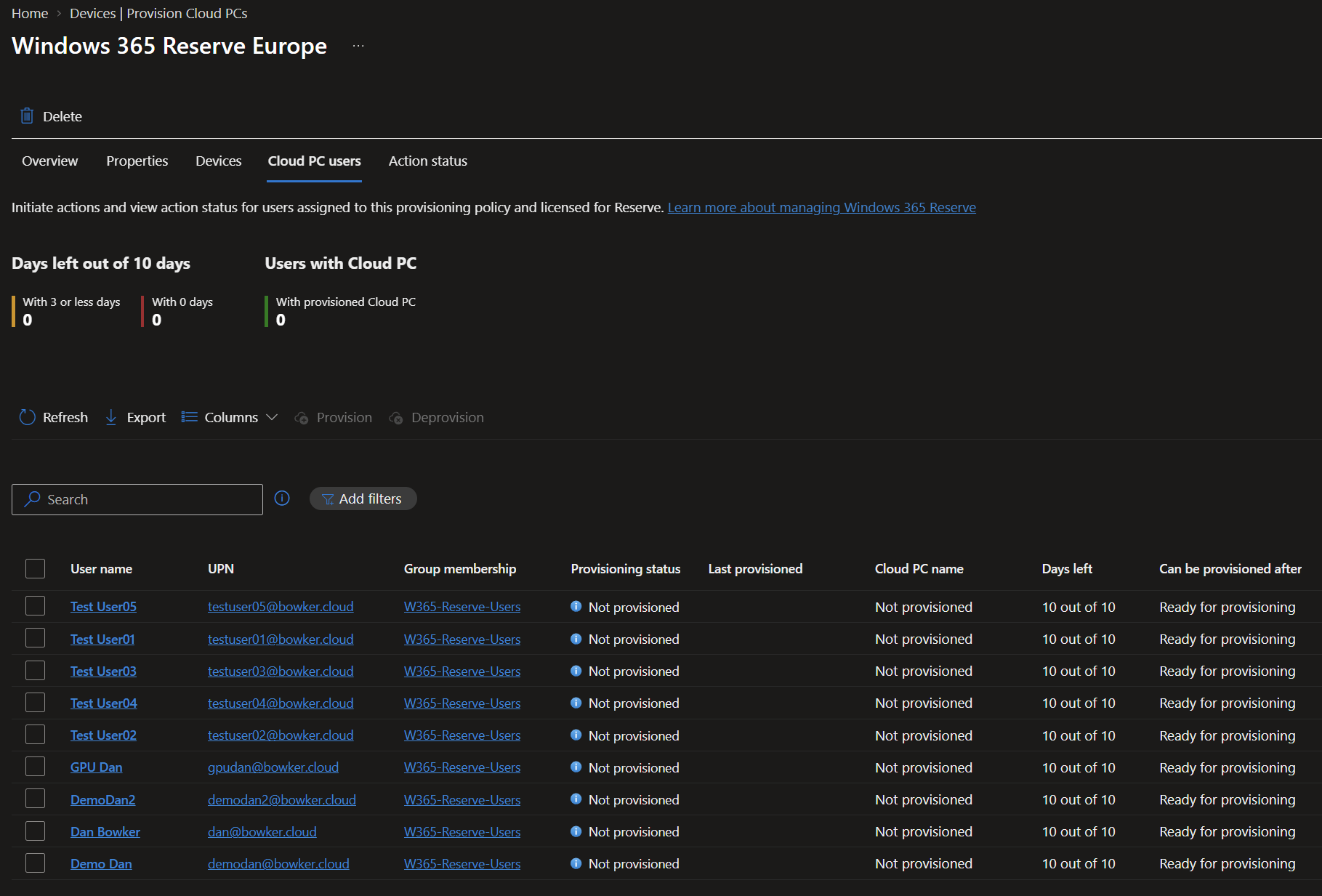
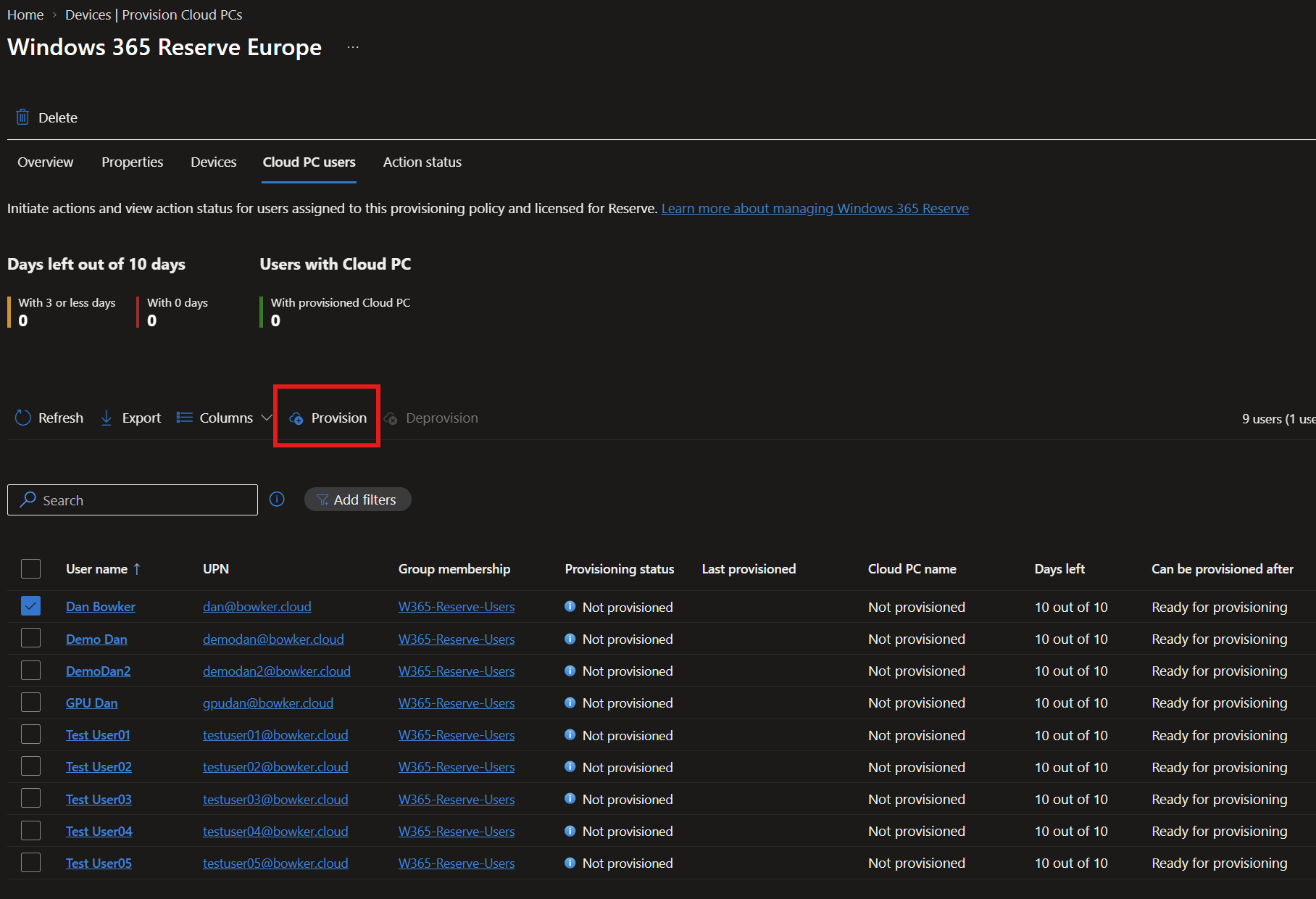
Selecting a user here enables Provision for an admin. I left that alone for this test. I wanted to find out whether the Windows App route actually worked end to end.
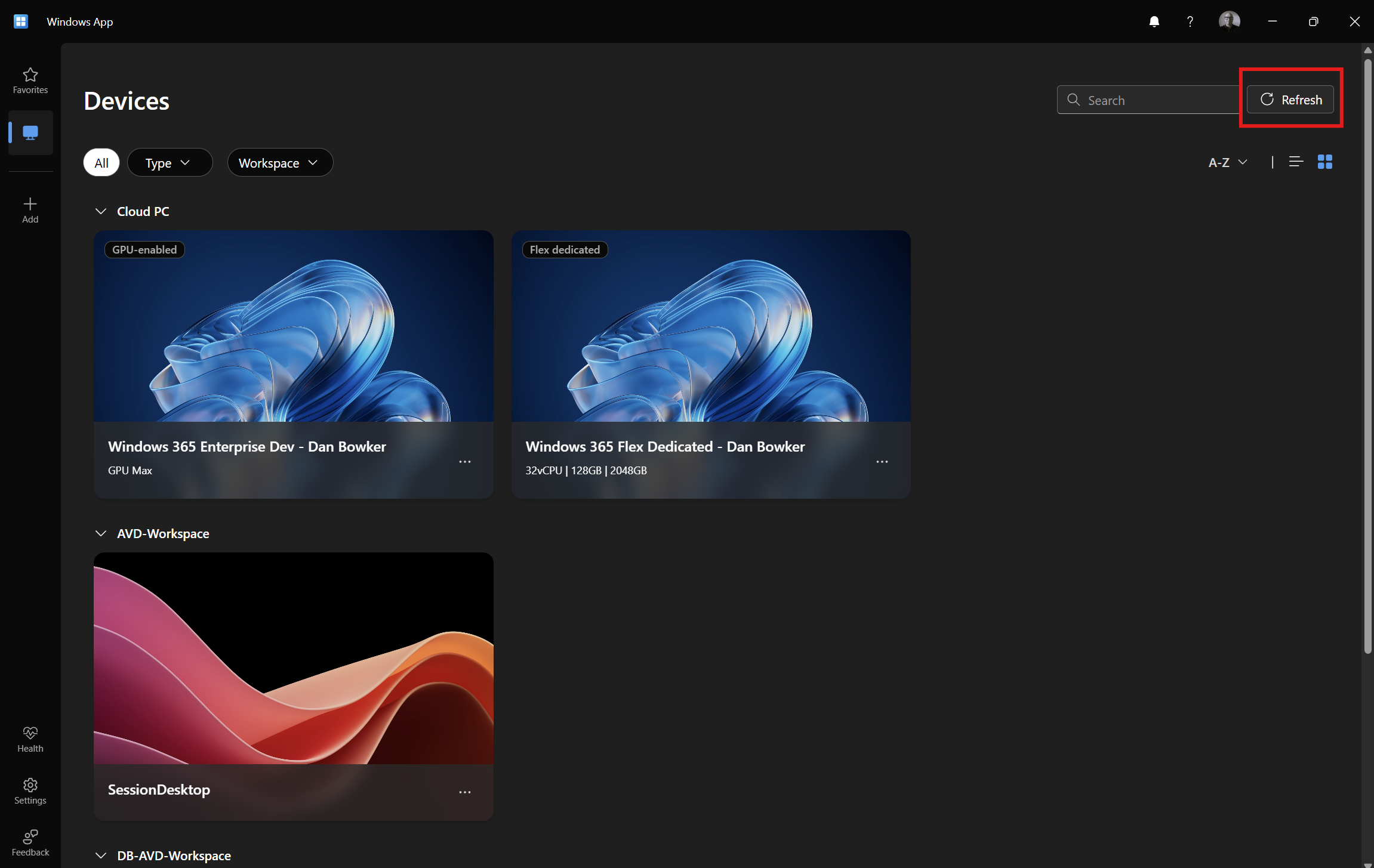
The first time I opened Windows App, I couldn't see Reserve at all. Just my existing Cloud PCs. Before going back to Intune, I tried Refresh.
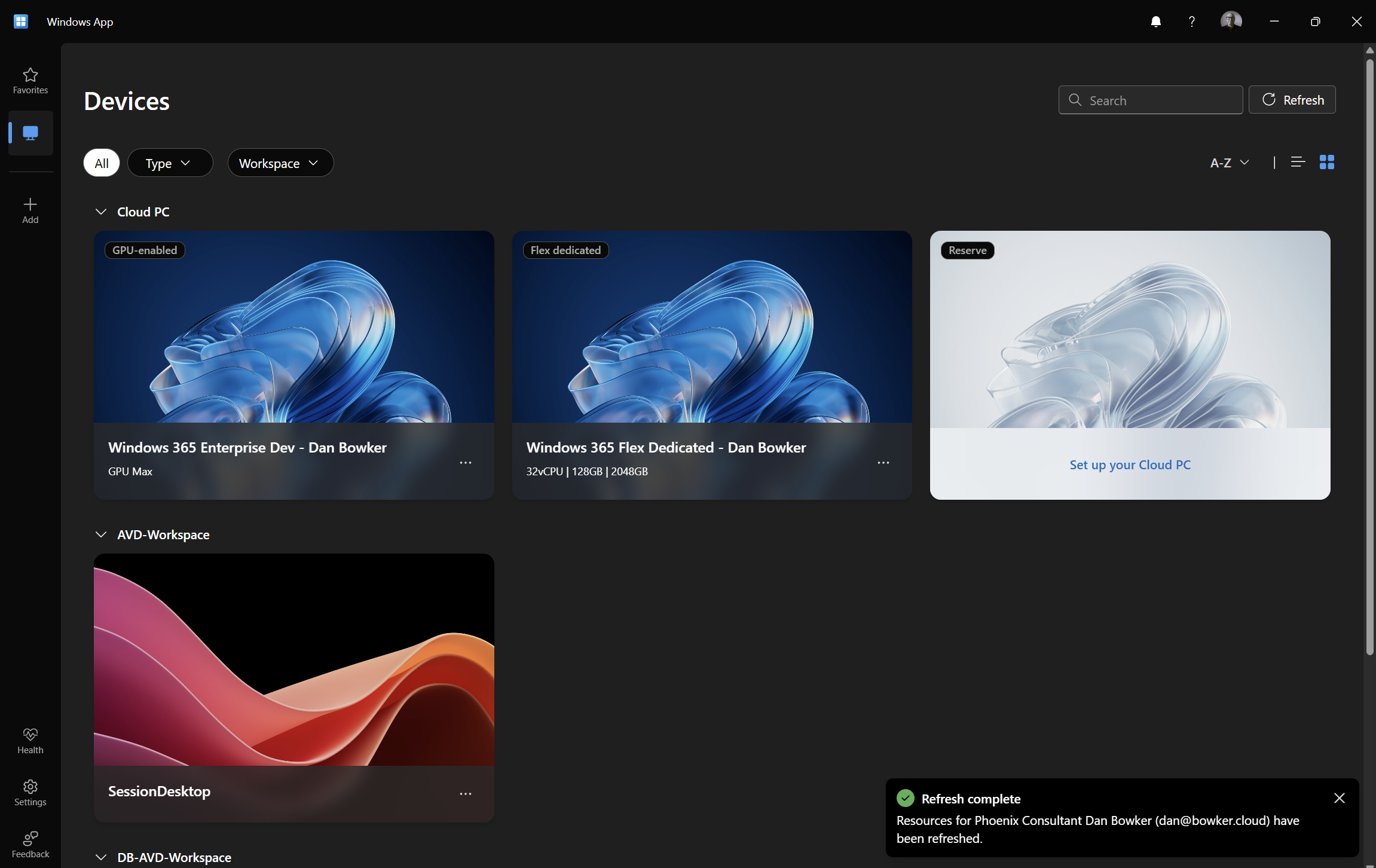
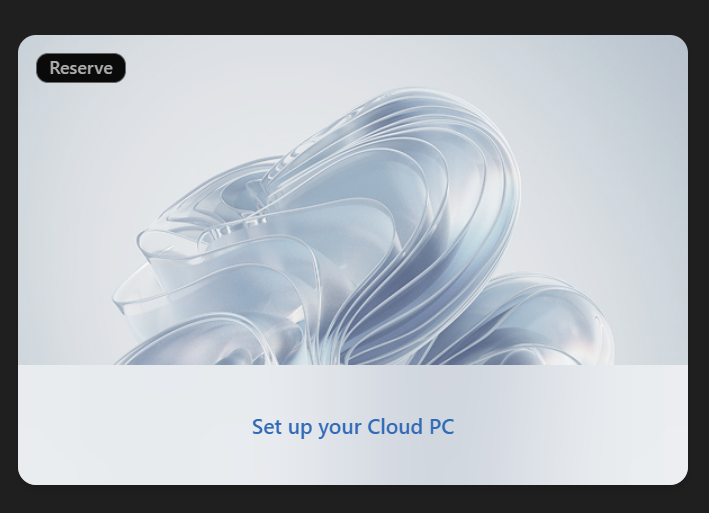
And there it was: a separate Set up your Cloud PC card alongside my other Cloud PCs. I really like this. It puts the recovery option in an app the user may already have, instead of making them find a special portal or raise a ticket just to begin.
Selecting the card brought up a confirmation showing the 10-day allowance. I clicked Begin set up, and Windows App took it from there. The ten days are days of use, by the way, not ten separate Cloud PCs.
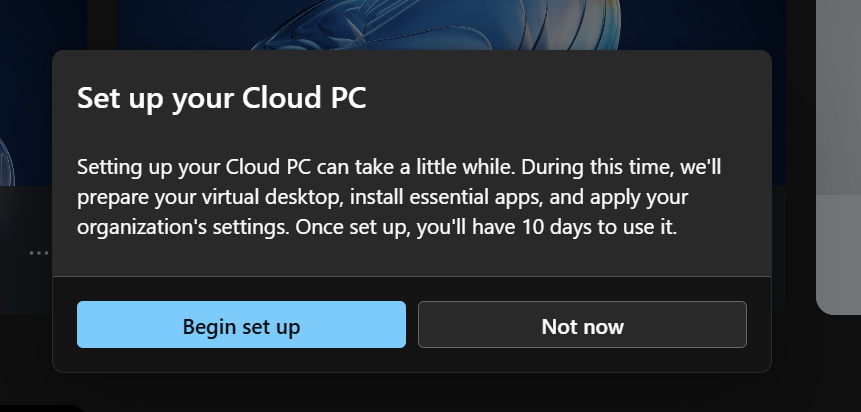
Windows App showed the Cloud PC being prepared. I could stay in the app and see that something was happening while the desktop was built.

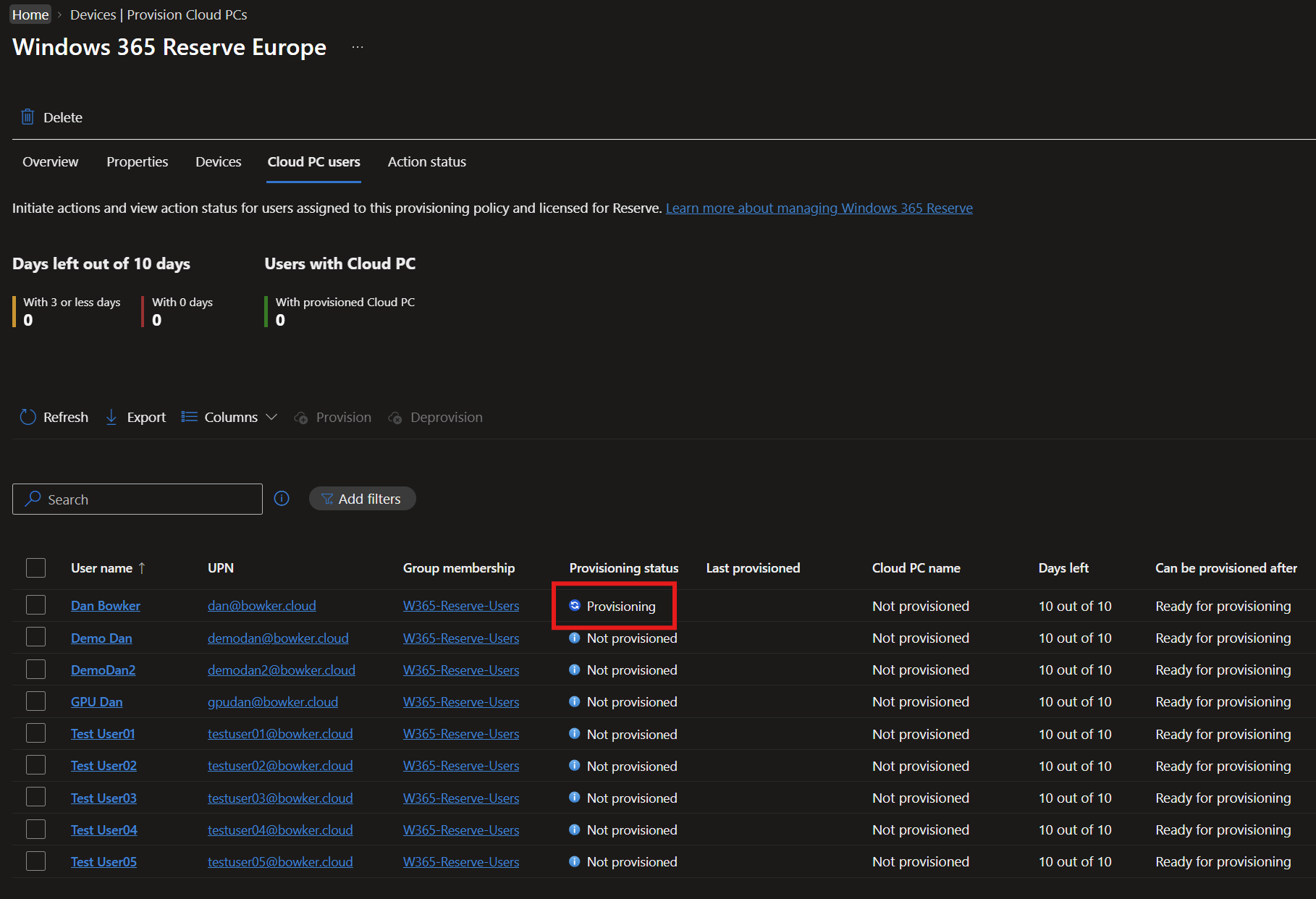
I checked Intune at the same time and saw the user move to Provisioning. That's useful for the support team too: they can follow progress without having to take over the setup.
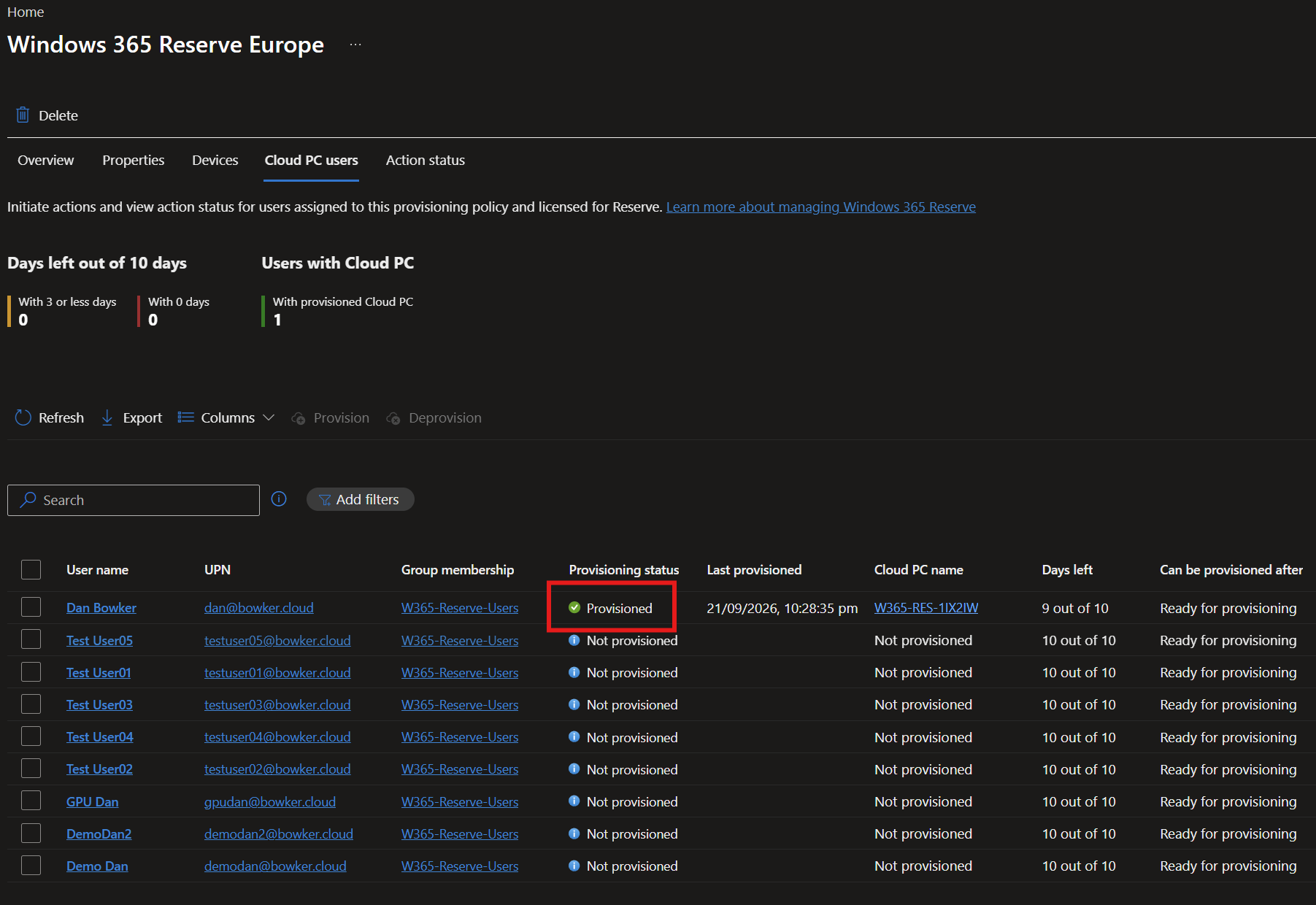
Once it was ready, Intune showed Provisioned, the Cloud PC name and 9/10 days left. The first day counts from provisioning, not from the user's first sign-in. Microsoft measures usage in 24-hour increments, with any part of an increment counting as a day. That makes the Return option important once the user has their normal device back.
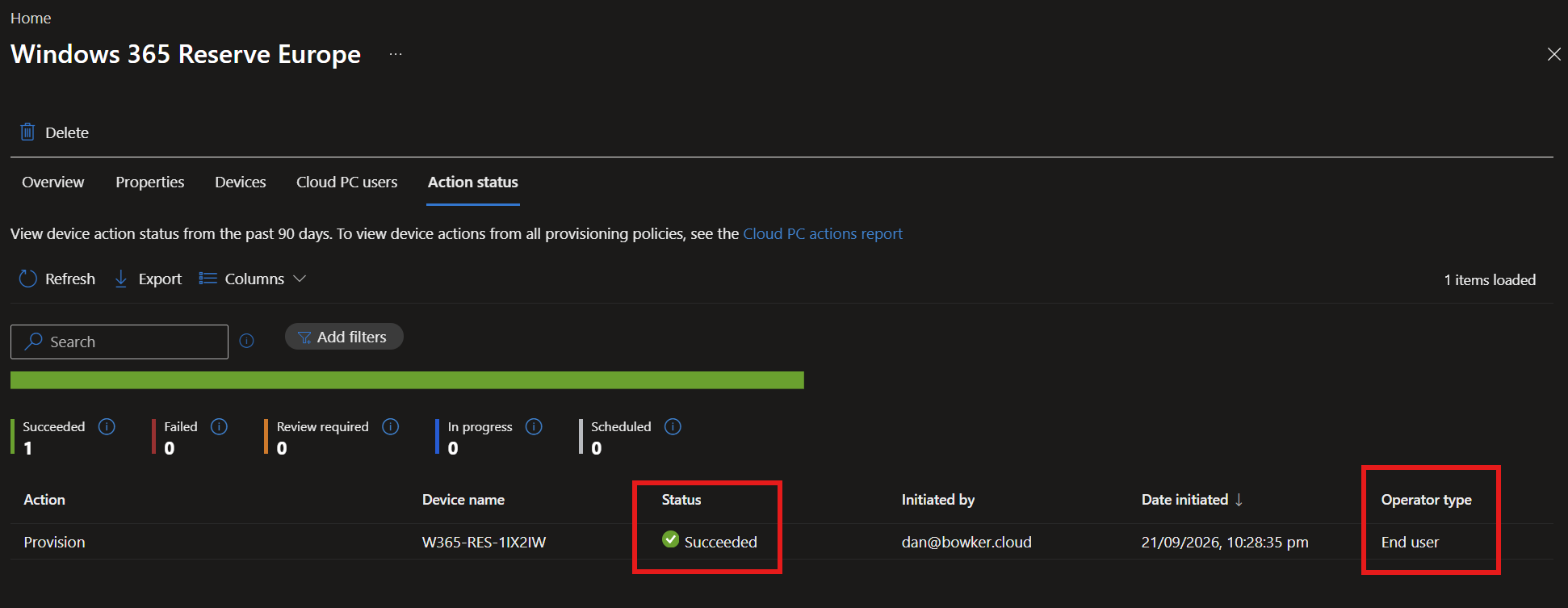
I checked Action status as well. The Provision action had succeeded and Operator type was End user. So this genuinely was the user-led route, not an admin action hiding behind the scenes.
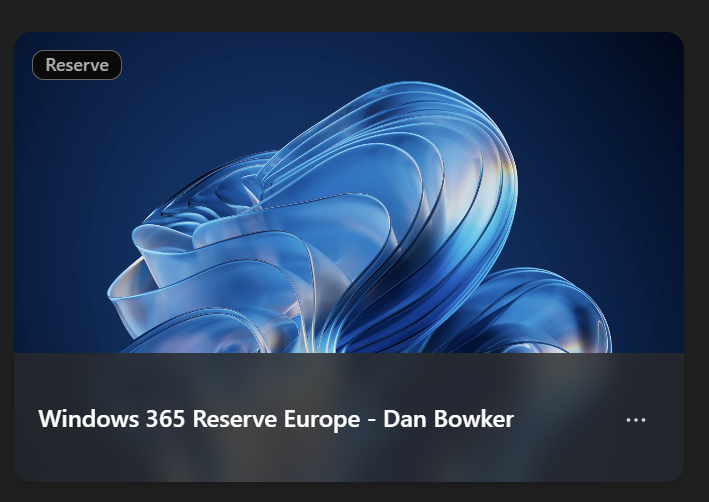
Back in Windows App, the Reserve Cloud PC was ready to connect. Seeing it appear next to the existing desktops made the use case click for me. A user can be without their usual laptop and still have a Windows environment available to them.
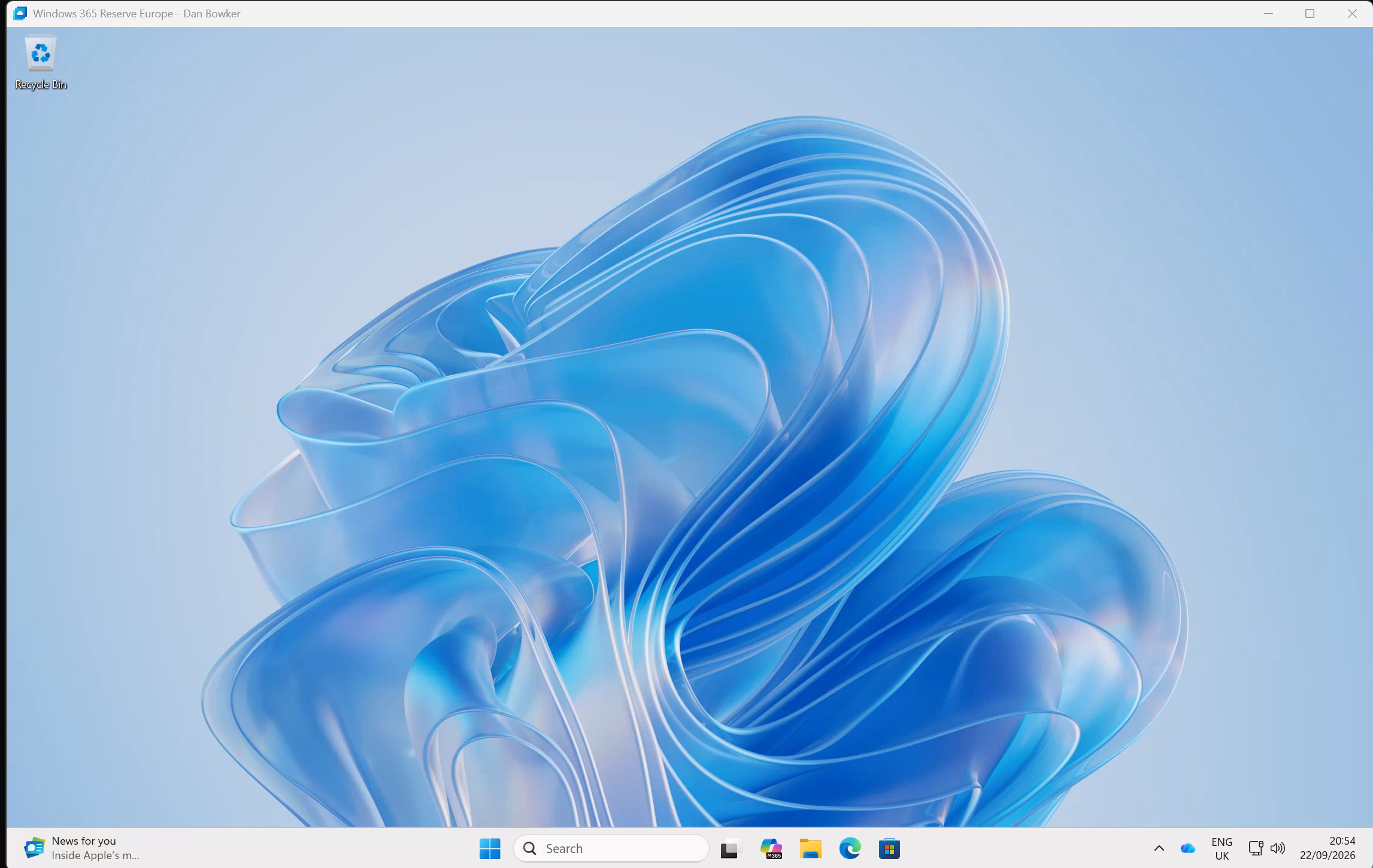
I connected and landed on a clean Windows 11 desktop. The full journey, from the user's setup card to a working desktop, had worked. The next step for any customer rollout would be testing the apps, data and access that particular users need. That's what turns an available desktop into a useful recovery option.
Returning the Cloud PC
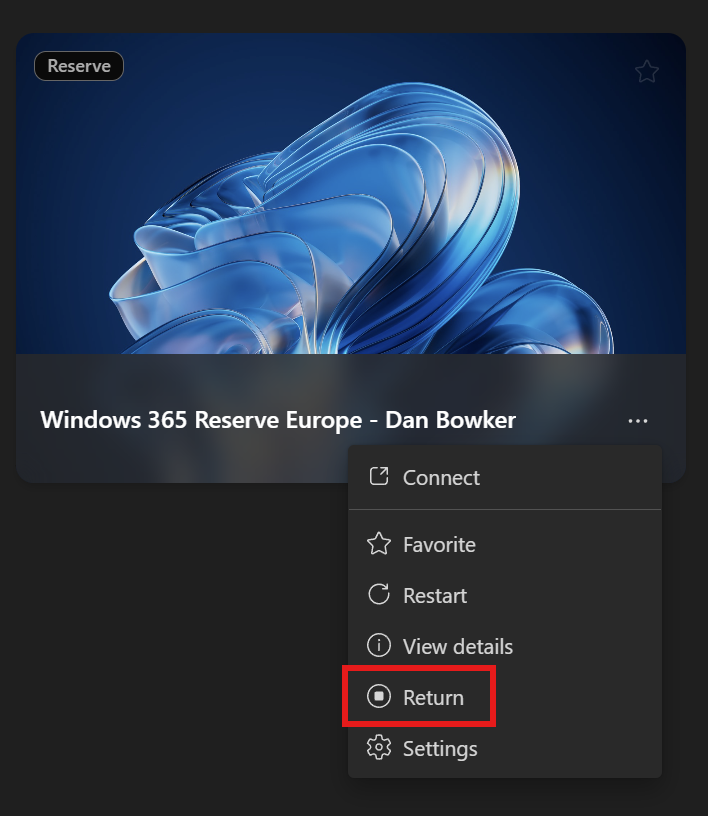
The other thing I wanted to test was returning the Cloud PC. A replacement laptop might arrive after a day or two, and I wouldn't want the rest of that user's allowance disappearing just because the Cloud PC was left running. I opened its menu in Windows App and selected Return. Disconnecting isn't enough to stop the clock; returning it is. Microsoft's licensing guide explains the counting in detail.
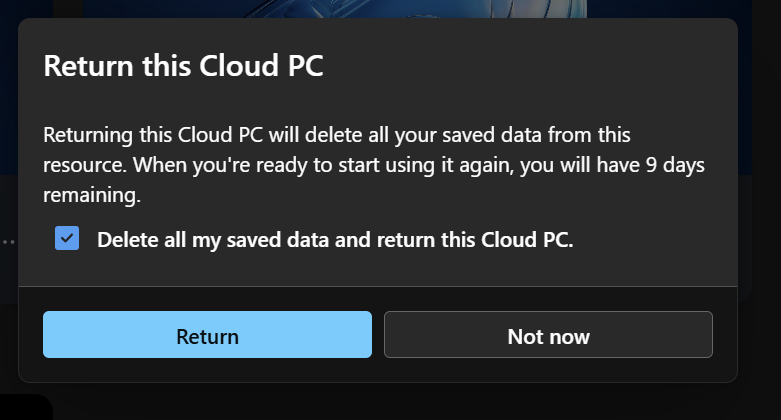
The confirmation is very clear that Return deletes the Cloud PC and anything saved locally on it. There's no snapshot or grace period for unsynchronised files. I'd make sure the user's work is saved in OneDrive or another backed-up location before they click it. In my case, the screen showed nine days remaining.
Intune moved to De-provisioning and still showed the remaining days. That's the bit I find useful: this was a short-lived desktop for a specific problem, and I could give it back when that problem was solved rather than leave it consuming the rest of the allowance.
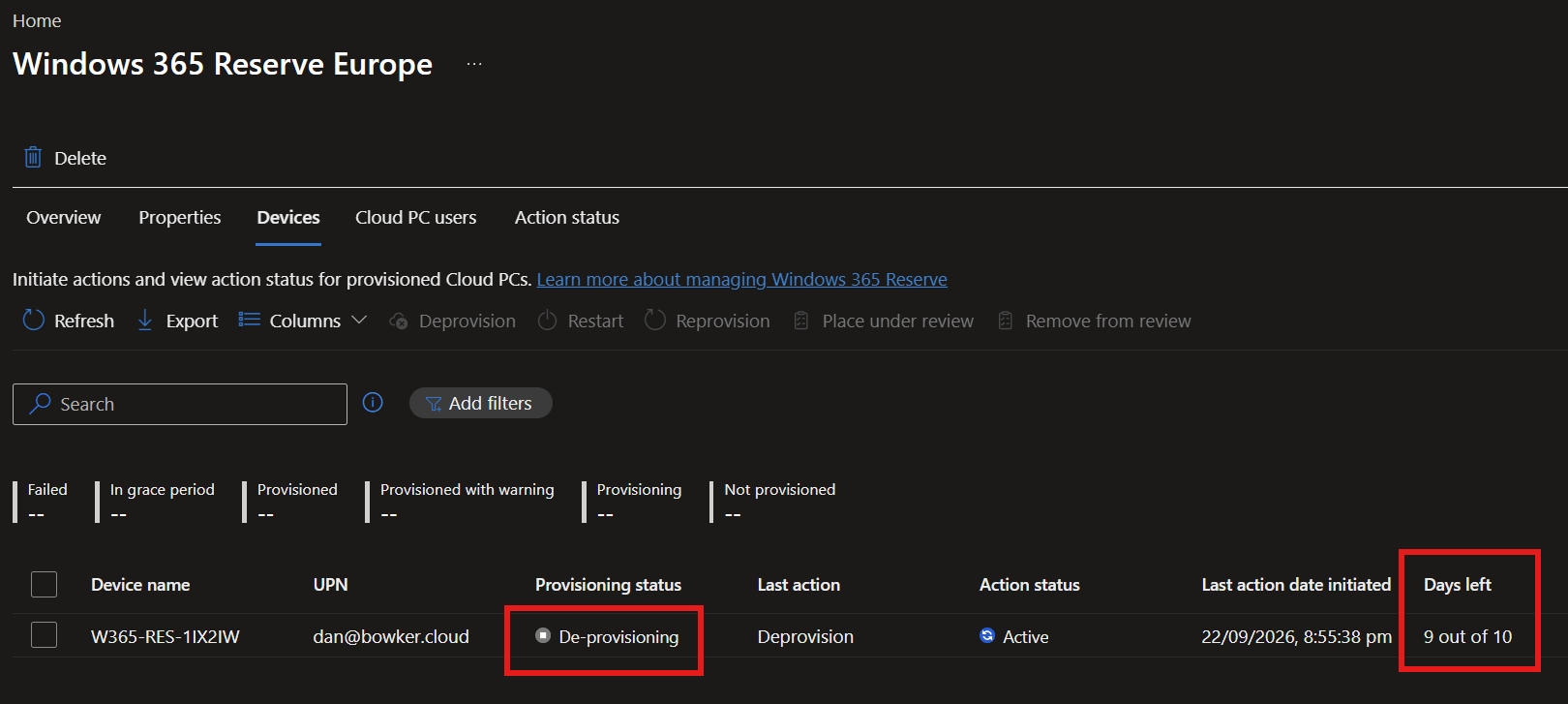
Once the Cloud PC had gone, Set up your Cloud PC appeared in Windows App again.
Where the TCO gets interesting
The other part of Reserve that interests me is the commercial conversation.
I don't think the right comparison is simply Reserve versus another Windows 365 licence. The more useful question is: what are you doing today when somebody's laptop is lost, damaged or unavailable?
For a lot of organisations, the answer is a pool of spare laptops.
Let's take a simple example of an organisation with 1,000 users.
If they maintain a 5% spare device pool, that's 50 laptops. At roughly £900–£1,100 per business laptop, that's somewhere around £45,000–£55,000 of hardware.
Windows 365 Reserve is $20 per user per year, or roughly £17 per user per year in the UK. Covering all 1,000 users would therefore be around £17,000 per year, or approximately £68,000 over four years.
That makes the comparison quite interesting.
| Approach | Annual cost | Four-year cost |
|---|---|---|
| 50 spare laptops | Upfront purchase | ~£45,000–£55,000 |
| Windows 365 Reserve for 1,000 users | ~£17,000 | ~£68,000 |
| 20 Windows 365 Flex licences | ~£21,000 | ~£83,000 |
| 50 Windows 365 Flex licences | ~£52,000 | ~£206,000 |
These are deliberately rough numbers. Enterprise hardware and Microsoft licensing will obviously vary depending on discounts and commercial agreements, but they give an idea of the scale.
Looking at the numbers like this, Reserve isn't automatically cheaper than buying a pool of spare laptops.
But that's not really the point.
Over four years, you're comparing roughly £45,000–£55,000 for 50 physical recovery devices with around £68,000 to provide Reserve coverage for all 1,000 users.
One gives you a limited pool of physical devices that need to be available and in the right place when something happens. The other gives every covered user their own annual entitlement of up to 10 days of Cloud PC use.
What about Windows 365 Flex?
Flex gives you another option.
Rather than licensing everybody, you can create a smaller pool based on the number of users you expect to need a Cloud PC at the same time.
For example, 20 comparable Flex licences would be roughly £21,000 per year, while providing capacity for 50 concurrent users would be around £52,000 per year.
That can make sense where you have a predictable level of concurrent demand, but you're making a decision about how much recovery capacity you need to keep available.
Reserve approaches that differently. You're not trying to predict which 20 or 50 people will need a desktop. Every covered user has their own entitlement ready for when they need it, subject to the Reserve eligibility and provisioning requirements I covered earlier.
The laptop cost isn't the whole TCO
The purchase price of those 50 spare laptops is only part of the existing model anyway.
They need to be stored somewhere. They need to stay patched, compliant and ready to use. Somebody needs to build or reset them, arrange collection or shipping, get them back afterwards and eventually replace them.
Then there's the cost that's much harder to put into a spreadsheet: how long is that person unable to work while they're waiting for a replacement device?
That's where I'd start looking at the real TCO.
Traditional spare device model
Spare laptops + refresh + warranty + storage + logistics + IT effort + user downtime
Windows 365 Flex
Required concurrent recovery capacity + Windows 365 management
Windows 365 Reserve
Annual coverage per user + Windows 365 management + another device to connect from
I still wouldn't see Reserve as a reason to throw every spare laptop in the bin. Some users will need specific hardware, peripherals or a physical replacement very quickly, and Reserve provisioning is still dependent on available Microsoft capacity.
But I do think it changes the conversation around how many spare devices you really need to keep purely for business continuity.
If you're already spending tens of thousands of pounds on hardware that spends most of its life sitting on a shelf, I'd definitely put those numbers alongside Reserve and Flex and work out what your endpoint recovery model is actually costing you today.
What I'd take away from this
Having now gone through the whole process myself, I think Reserve is one of the easier Windows 365 use cases to explain.
I'm not trying to convince somebody to change their entire desktop strategy or replace every laptop with a Cloud PC. It's much simpler than that. If somebody suddenly doesn't have access to their normal device, can I give them a managed Windows environment and keep them productive?
Reserve gives me a pretty straightforward answer to that.
The setup itself was simple, and I particularly liked the self-service experience through Windows App. From an operational perspective, the things I'd spend more time on are making sure users are eligible before an incident happens, testing the applications and access they'll actually need, and making the Return process very clear so people don't accidentally lose locally stored data or consume more of their allowance than necessary.
I'd also keep a close eye on the ten-day entitlement. For a lost or damaged laptop, that's probably plenty in a lot of cases, especially if the Cloud PC is returned after a day or two. I'd still like to see more flexibility here in future, particularly the ability to extend or stack that entitlement for customers that want a longer recovery window.
The other interesting thing for me is where this goes beyond DR. We're already discussing scenarios such as new starters waiting for hardware, and I'm starting to hear similar conversations from customers. I suspect we'll find more of those use cases as organisations actually start deploying it.
For me, though, the core value remains endpoint recovery. We've spent years helping customers think about how they recover their services, infrastructure and data. Windows 365 Reserve gives us a relatively simple way to include the user's device in that conversation too.
If you're looking at this for your own environment, Microsoft's overview, management guide, licensing guide and FAQ are worth having open alongside your rollout plan.