Microsoft Cloud Endpoint Network Health Check
The Ultimate Windows 365 Network Validation Script has evolved into Microsoft Cloud Endpoint Network Health Check, validating Intune, Windows 365 and Azure Virtual Desktop across 442 endpoint entries with deeper network tests.
A while ago I published The Ultimate Windows 365 Network Validation Script, a PowerShell tool to help validate the network requirements for Windows 365.
The idea was pretty simple.
Microsoft's network requirements sit across a few different documentation pages, and when a Cloud PC wouldn't provision or a user couldn't connect properly I wanted one place where I could test the lot rather than manually working through FQDNs, ports and IP ranges.
It did the job, but I've made a pretty big overhaul since then.
And somewhere along the way it stopped really being just a Windows 365 script.
The latest version now validates Microsoft Intune, Windows 365 and Azure Virtual Desktop, with 442 endpoint entries and a much deeper set of tests than the original version.
So I've repositioned it as the:
Microsoft Cloud Endpoint Network Health Check
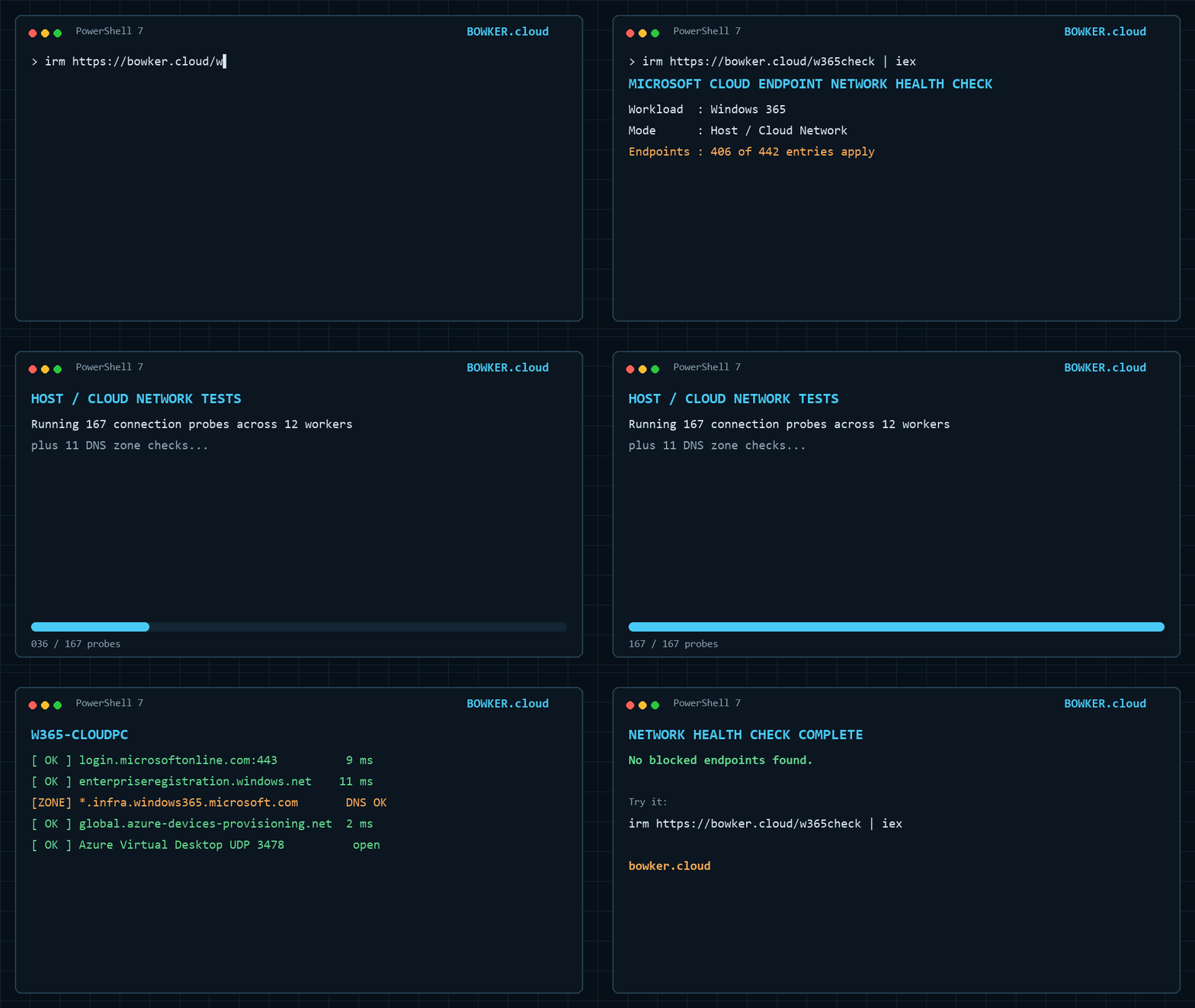
A short example run using the one-line PowerShell command.
Quick run
The script is still PowerShell, still has no additional module dependencies, and the easiest way to run it is:
irm https://bowker.cloud/endpointcheck | iex
The original https://bowker.cloud/w365check alias remains available for backwards compatibility.
If you prefer to review the script before running it:
Invoke-WebRequest https://bowker.cloud/endpointcheck -OutFile .\Test-CloudEndpointNetworkHealth.ps1
notepad .\Test-CloudEndpointNetworkHealth.ps1
.\Test-CloudEndpointNetworkHealth.ps1
But quite a lot has changed underneath.
Intune Now Has Dedicated Validation
This is probably the biggest change in v4.0.
When I originally wrote the script, Intune was there because Windows 365 depends on it.
The endpoint list has grown quite a bit since then and it became obvious that the script was just as useful for a normal Intune-managed Windows device as it was for a Cloud PC.
There are now 349 Intune-related entries in the dataset.
So rather than making someone who just wants to validate Intune connectivity run the whole Windows 365 check and ignore everything else, the script now asks what you actually want to test.
What would you like to validate?

  [1] All Cloud Endpoint requirements
  [2] Microsoft Intune
  [3] Windows 365
  [4] Azure Virtual Desktop

Selection [1]:
Then it asks where you're running the test.
Where are you running the test?

  [1] Host / Cloud Network
      (Cloud PC, AVD session host, or Azure VNet VM)

  [2] Physical Client Device
      (Intune-managed Windows device, or device connecting to a Cloud PC or
       AVD session host using Windows App)

  [3] Both

Selection [1]:
I like this split because they are really two different questions:
What are you validating?
and
Where are you validating it from?
For Intune, Mode 2 can simply be the physical managed Windows laptop you're troubleshooting.
For Windows 365 or AVD, Mode 2 is the physical endpoint running Windows App and connecting to the Cloud PC or session host.
What Does the Intune Test Cover?
The Intune workload validates the published Microsoft Intune network requirements for Windows devices in the commercial Microsoft cloud.
That includes things such as:
- Core Intune service connectivity
- Intune Management Extension and Win32 apps
- Windows Push Notification Services
- Delivery Optimization
- Windows Update dependencies
- Windows Autopilot
- Autopilot diagnostics
- Microsoft Azure Attestation
- Microsoft Store
- Remote Help
- Endpoint Privilege Management dependencies included in Microsoft's Intune endpoint list
- PowerShell Gallery / OneGet
- Published Intune IP ranges
This is worth calling out because a lot of "Intune problems" aren't really Intune problems.
A device might enrol successfully but fail to download Win32 content.
Autopilot might get most of the way through OOBE and then stop.
Windows Update or Delivery Optimization might not behave properly.
Remote Help might not establish a session.
A firewall team can allow a couple of obvious Intune URLs and quite reasonably think the job is done, while another required path is still blocked.
The script is there to make that easier to see.
Scope note
Products such as Microsoft Defender for Endpoint and Security Copilot have their own networking requirements.
This tool focuses on Microsoft's published Intune network requirements for Windows devices, plus the Windows 365 and Azure Virtual Desktop requirements covered by the other workloads.
Windows 365 and Azure Virtual Desktop Coverage
Windows 365 Includes Its Real Dependencies
Another thing I wanted to avoid was making the new workload selection too simplistic.
If you choose:
-Workload Windows365
the script does not just test the endpoints labelled W365-CloudPC.
That would make the output shorter, but it could also give you a completely green result while provisioning still fails.
Microsoft's own Windows 365 networking guidance covers four areas:
- The physical device
- Microsoft Intune
- The AVD session host
- The Windows 365 service
A Cloud PC is a Windows 365-managed desktop that relies on Intune, Azure Virtual Desktop connectivity components and Azure platform services.
So the Windows 365 workload includes the Intune, AVD and Azure platform dependencies it genuinely relies on.
It deliberately leaves out unrelated optional Intune features such as Remote Help and Microsoft Store.
AVD Can Be Tested on Its Own
Azure Virtual Desktop is also now a separate workload.
That includes the required and optional session-host requirements, client-side connectivity, Azure fabric services, Certificate Authority endpoints and RDP Shortpath.
The location choice then decides which side you're testing.
Run it from the session host to validate the host/cloud side.
Run it from the physical Windows device to validate the client side.
Or run both.
Deeper Network Validation
It's No Longer Just a Port Checker
The workload changes are probably the most visible part of v4.0, but the testing engine itself has changed a lot since the original version.
The first version was intentionally simple:
- Resolve the hostname
- Try the TCP port
- Tell me whether it opened
Useful, but there are some obvious limitations.
A security product can accept TCP 443 locally while still blocking the hostname when TLS starts.
A wildcard can't just be connected to.
UDP isn't the same thing as TCP.
And a DNS problem isn't the same thing as a firewall problem.
So the current version now goes quite a bit further.
TLS, Not Just TCP 443
Where it makes sense, port 443 now gets a real TLS handshake with SNI.
That lets the script separate:
[ OK ]  Connection succeeded
[FAIL]  DNS worked but the connection failed
[DNS!]  The hostname didn't resolve
[TLS!]  TCP opened but TLS failed
[INSP]  Certificate chain suggests SSL inspection
That distinction is really useful.
If DNS is broken, changing a port rule isn't going to help.
If TCP works but TLS fails, that's a completely different troubleshooting path again.
The script also checks the certificate chain, which can help identify SSL inspection against endpoints where Microsoft doesn't support it.
One TLS Rabbit Hole Found a Bigger Problem
While testing all of this properly, I found that some Windows Update and Delivery Optimization hostnames sit behind third-party CDN infrastructure where the returned certificate doesn't necessarily cover the Microsoft hostname.
Treating those as normal TLS failures would be misleading, so those specific entries are TCP-tested instead.
But going through those Microsoft tables uncovered something more important.
A number of endpoint groups are documented as:
TCP 80, 443
The older endpoint list only carried 443 for quite a few of them.
That's particularly important for Windows Update and Delivery Optimization, where signed content can be retrieved over HTTP.
So it was possible for the old version to say everything looked healthy on 443 while port 80 was blocked and patching was still broken.
The new list tests port 80 where Microsoft require it and the endpoint actually listens there.
Wildcards Are Actually Tested Now
The original version returned [SKIP] for wildcard entries.
That was honest, because you can't connect to:
*.wvd.microsoft.com
But a big chunk of Microsoft's endpoint requirements are wildcards, and just skipping them wasn't really good enough.
The script now uses a known live hostname inside the wildcard where one is available.
If there isn't a stable public hostname, it validates the parent DNS zone instead.
That second option doesn't prove every possible destination inside the wildcard is allowed through the firewall, but it can still catch DNS filtering and is much more useful than doing nothing.
UDP Is Actually Tested
RDP Shortpath now sends a real STUN binding request over UDP 3478.
It's tested on both sides where Microsoft require it.
That matters because proving the Cloud PC or AVD session host can reach the STUN service doesn't prove the physical user's network can do the same thing.
NTP also gets a real SNTP request.
The script reports clock skew as well because a badly skewed clock can cause Entra authentication problems that don't immediately look like network issues.
Azure-Aware Checks
The script now checks Azure-specific services including:
- Azure Instance Metadata Service (IMDS)
- WireServer
IMDS also gives the script some useful context.
If IMDS responds, we know we're actually inside Azure, so other results can be interpreted differently.
This turned out to matter when I was looking at very fast connections.
A Cloud PC can legitimately reach some Microsoft services in under a couple of milliseconds because it's already sitting on Microsoft's backbone.
Very low latency on its own is not proof that a local ZTNA or Secure Web Gateway agent is intercepting the traffic.
The current detection uses multiple signals rather than making that assumption.
ZTNA and Secure Web Gateways
Traditional proxy detection isn't enough anymore.
Products such as Microsoft Global Secure Access, Zscaler, Netskope and Prisma can intercept traffic without setting a normal WinHTTP or WinInet proxy.
The script therefore performs some behavioural checks to help identify when traffic appears to be accepted locally rather than genuinely reaching the destination.
I'm deliberately not trying to detect a specific vendor.
I care more about what the network path is doing than which product is doing it.
Connection Latency
Every testable endpoint now records connection latency too.
This is a troubleshooting tool, not a monitoring platform, but there is a big difference between:
It connects.
and:
It connects, but it's taking hundreds of milliseconds from this location.
For Cloud PC and AVD troubleshooting, that extra context can be useful.
Intune IP Range Filtering
This one needed a bit of UX work.
Microsoft publishes Intune service IP ranges across a subset of Azure regions.
The old version walked users through a region picker, but that created a pretty obvious problem: a UK customer might look for UK South or UK West, not find either, and reasonably assume something is broken.
So I've changed it.
By default the script now shows all applicable Intune IP ranges.
If you want to, you can opt into regional filtering to reduce the CIDR guidance shown at the end.
The important bit is that this does not change the actual connectivity tests.
It's just there to make the firewall guidance a little easier to work through.
And if Microsoft's service-tag data can't be downloaded or mapped, the script falls back to showing all ranges and carries on.
Why I Don't Test Every IP Range
There are a lot of CIDR ranges in Microsoft's documentation.
It would be easy to pick an address from each range, try a socket and make the script look like it's testing hundreds more things.
It wouldn't actually prove much.
Not every IP inside a global cloud service range is expected to respond from every location at every moment.
So the script reports those ranges as firewall/NSG requirements instead.
The full detail is still available if you export the results.
Running the Health Check
The easiest way to run it is:
irm https://bowker.cloud/endpointcheck | iex
PowerShell 7 is recommended, although Windows PowerShell 5.1 is still supported.
You can also go straight to a workload and mode:
.\Test-CloudEndpointNetworkHealth.ps1 -Workload Intune -Mode 2
.\Test-CloudEndpointNetworkHealth.ps1 -Workload Windows365 -Mode 1
.\Test-CloudEndpointNetworkHealth.ps1 -Workload AVD -Mode 3
And export the full result set:
.\Test-CloudEndpointNetworkHealth.ps1 -Workload Intune -Mode 2 -OutputPath C:\Temp\results.csv
A Name That Now Fits
The main PowerShell file is now called:
Test-CloudEndpointNetworkHealth.ps1
That matches the wider Intune, Windows 365 and Azure Virtual Desktop scope much better.
The previous Test-W365NetworkHealth.ps1 filename remains available during the compatibility period, and the original /w365check shortcut continues to run the current script.
New downloads, documentation and automation should use Test-CloudEndpointNetworkHealth.ps1 or the /endpointcheck shortcut.
Current Scope
The current version is focused on the commercial Microsoft cloud.
It covers the published requirements I've audited for:
- Microsoft Intune
- Windows 365 Enterprise
- Azure Virtual Desktop session hosts
- AVD end user devices
- Microsoft Azure Attestation
- Windows Autopilot diagnostics
- Azure fabric connectivity
Government-specific Windows 365, AVD and Intune endpoint sets are not currently part of the validated scope.
I'd rather be clear about that than give someone a nice green screen against the wrong set of requirements.
Where This Has Ended Up
What started as The Ultimate Windows 365 Network Validation Script has turned into something I'm now just as likely to use for Intune or AVD troubleshooting.
And actually, I think that makes sense.
Intune, Windows 365, AVD, Autopilot, Windows Update and Entra increasingly overlap from an endpoint and connectivity point of view.
The problems don't always stay neatly inside one product boundary.
So Microsoft Cloud Endpoint Network Health Check feels like a much better description of what the script has become.
It's still open source, there are no additional PowerShell modules to install, and I'll keep updating the endpoint list as Microsoft change the requirements.
If you spot something I've missed, raise an issue or PR on GitHub.
Hopefully it saves you a few hours staring at firewall logs.
Happy troubleshooting!
Source: GitHub — Microsoft Cloud Endpoint Network Health Check